
View changes to a project
Change History
displays the history of changes made to a local or shared project. Change history tab
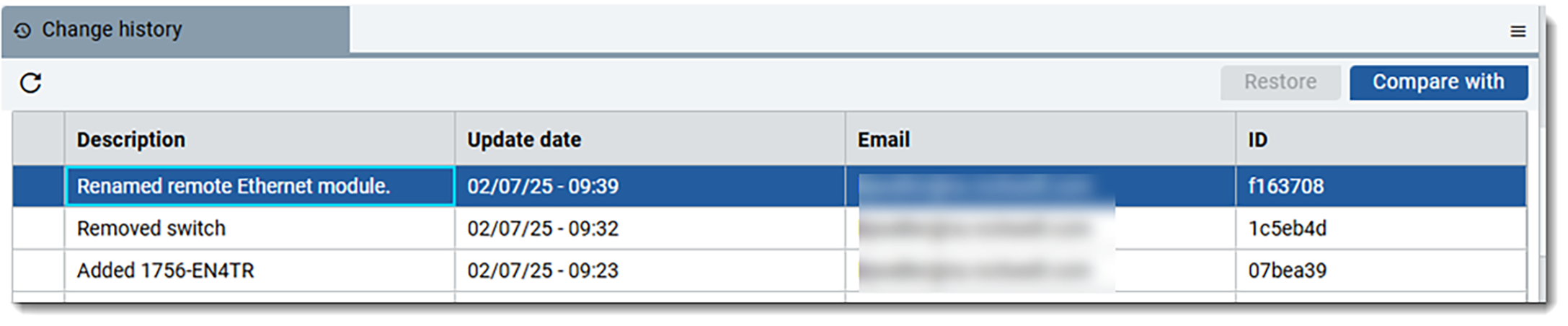
Change History
displays a description of the set of changes, the date and time the
changes were saved, the name of the user who checked in the changes. A project ID identifies
a set of changes in the repository.  appears for a shared project. View history before pulling changes into your local
version of the project, or whenever you want to see changes to a project. Compare commits to
see details about the specific differences between the versions.
appears for a shared project. View history before pulling changes into your local
version of the project, or whenever you want to see changes to a project. Compare commits to
see details about the specific differences between the versions.Compare the changes
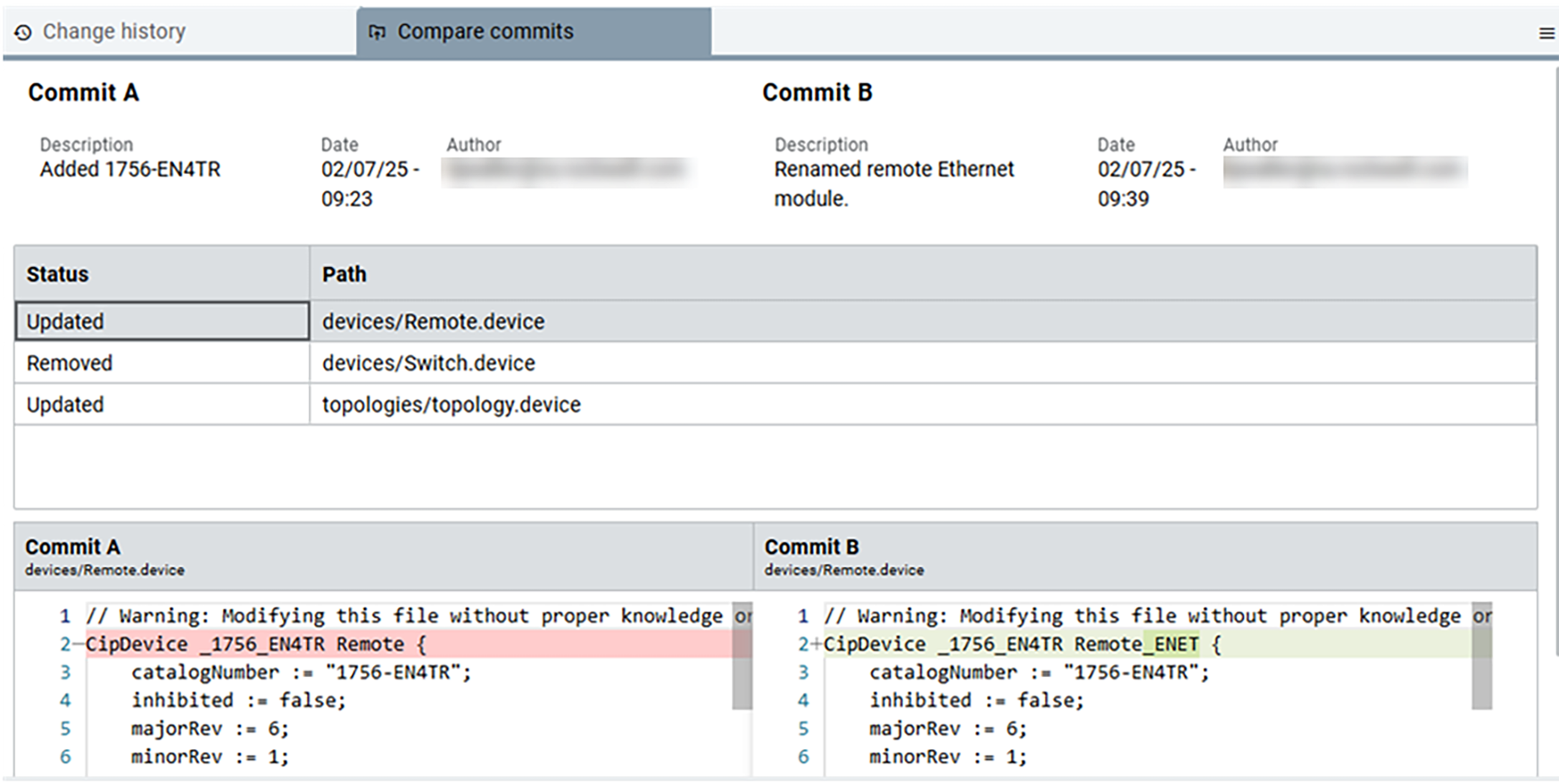
- With a local or shared project open, from the menubar, selectFile > Source control > Change historyor pressCTRL+H.
- InChange history,select the commits to compare:
- Previous commit. Double-click a commit to openCompare commitsand view the differences between your current commit and your previous commit.
- Selected commits. Select a commit, selectCompare with, and then elect another commit to openCompare commitsand view the differences between the two commits.TIP: When you compare two selected commits, you may be comparing your commit with the commit of another user.
- InCompare commitsview the information:
- Description. The description of the change made in both Commit A and Commit B.
- Date. The date Commit A and Commit B were saved.
- Author. The names of the users who applied changes in both Commit A and Cs
- Commit A. The changes in Commit A.
- Commit B. The changes in Commit B.
- SelectClose.
Provide Feedback