
Axisxx View
Use Axis to view or configure a specific axis for the device.
Axisxx View Example
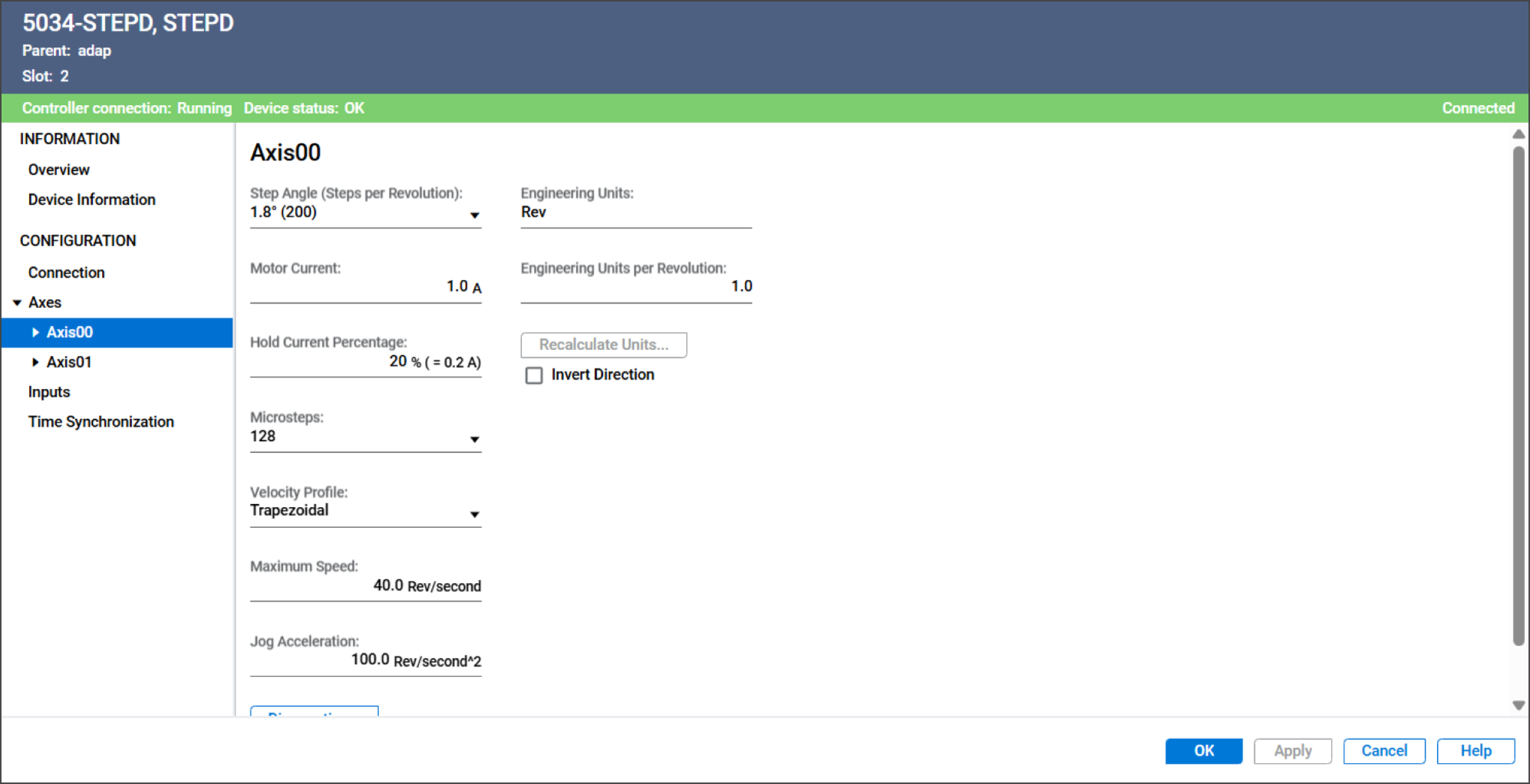
The Axisxx view includes these parameters:
Parameter | Description | |||||||||
|---|---|---|---|---|---|---|---|---|---|---|
Step Angle (Steps per Revolution) | Determines the degree of movement of each step that the motor
takes.
| |||||||||
Motor Current | Specifies the continuous current that is supplied to the motor
when the motor is moving. Valid values are 0.1…4.0 A | |||||||||
Hold Current Percentage | Specifies the percentage of motor current to apply to maintain
holding torque while the axis is stationary. Valid values are 0…100% | |||||||||
Microsteps | Determines the number of microsteps that is equal to one full
motor step. Valid values are 1, 2, 4, 8, 16, 32, 64, 128, and 256 | |||||||||
Velocity Profile | Determines the velocity profile to use for motion commands.
| |||||||||
Maximum Speed | Specifies the maximum speed that the axis is allowed to move. If the commanded velocity exceeds maximum speed, the actual
velocity is limited to maximum speed and I.Axisxx.OverspeedAlarm
is set to 1. The value is in Engineering Units per second. | |||||||||
Jog Acceleration | Specifies the speed's rate of change for the Jog command. The value is in Engineering Units per second 2 . | |||||||||
Engineering Units | Specifies the unit of measurement for position or distance. Valid values are text strings. The string is used on the
following fields:
| |||||||||
Engineering Units Per Revolution | Specifies the number of engineering units in one revolution. The
module uses this value to convert position, speed, and
acceleration parameters between revolutions and engineering
units. | |||||||||
Recalculate Units | When Engineering Units per Revolution is changed, use this button
to recalculate values automatically for these configuration
parameters:
| |||||||||
Invert Direction | Specifies whether to invert the logical motor direction to
account for installation or mechanical orientation
differences.
| |||||||||
Diagnostics | Opens the Diagnostics dialog, which contains diagnostic
information. |
Axisxx Diagnostics
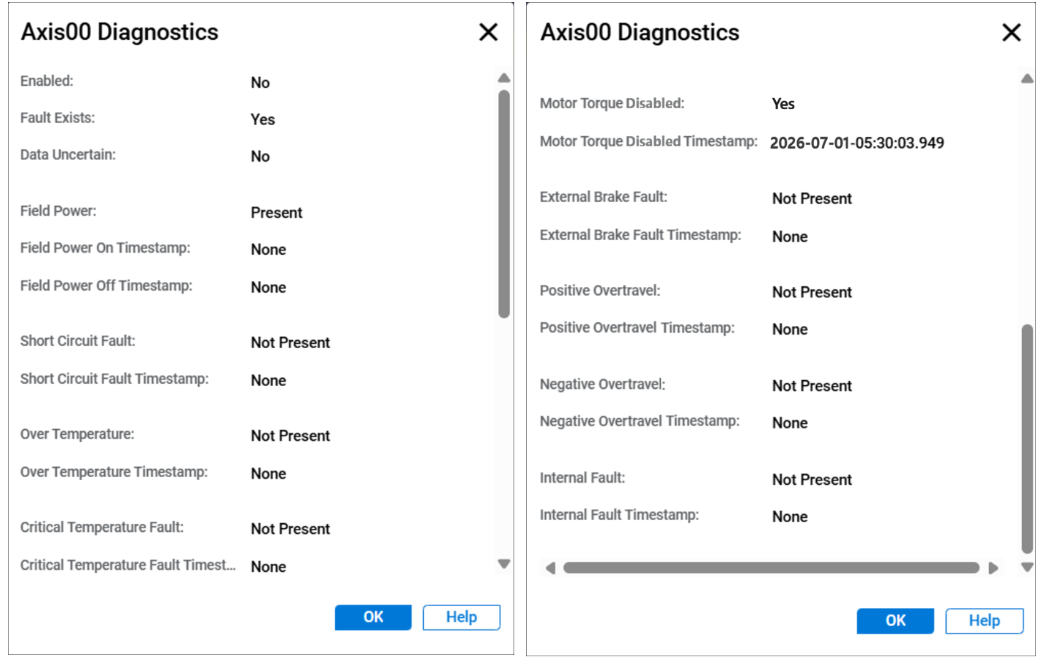
To view the Axisxx diagnostics, select Diagnostics in the Axes or Axisxx view.
Axisxx Diagnostics Example
Provide Feedback