Loading
Innovation Center LOGO
Recent ActivityRecent Activity

Remote variable logging with FactoryTalk Optix

Step-by-step process for generating PDF reports from process variables of a simulated electric motor operation. This application also provides a base framework for developing a first application using FactoryTalk Optix. - [Implementation time: 30 Minutes]
Innovation Center Home Page
Corporate Analyst Reviews Digital Compliance Logs Thoroughly
Innovation Center LOGO
  • Overview
  • Implementation Guide
  • Download
  • Contact us
  • Subscribe
Innovation Center Home Page
 

What does this application do?

The native generation of PDF reports without coding in FactoryTalk Optix enables automated digitalization of production, audit, and quality control data directly at the Edge. This function is critical for traceability compliance, allowing operators to export summaries of alarms, trends, and historical variables with a single click into a PDF file.

Additionally, the FT Optix application provides a reference framework for building your first FT Optix application.


Is this application relevant to me?

This is useful for users who have questions about how to create their first FT Optix projects, as well as for generating reports of process variables logged remotely from any database.


Application areas: Any type of industry that requires variable logging.
 

AHIC Download ICON VF.png

Downloads

Please note: You will need to agree to the Terms & Conditions for each download.

Downloadable file ›
Legal Disclaimer Acceptance. ROCKWELL AUTOMATION WILL PROVIDE ACCESS TO ROCKWELL PRODUCTS (BEST PRACTICES, APPLICATIONS AND KNOWLEDGE) ON THE CONDITION THAT YOU ACCEPT AND COMPLY WITH THE FOLLOWING TERMS AND CONDITIONS. YOU ACCEPT AND AGREE TO BE BOUND BY THE TERMS OF THIS AGREEMENT BY DOWNLOADING, INSTALLING, COPYING, OR OTHERWISE USING PRODUCTS. IF YOU ARE ACCEPTING THESE TERMS ON BEHALF OF ANOTHER PERSON, COMPANY, OR OTHER LEGAL ENTITY, YOU REPRESENT AND WARRANT THAT YOU HAVE FULL AUTHORITY TO BIND THAT PERSON, COMPANY, OR LEGAL ENTITY TO THESE TERMS. IF YOU DO NOT AGREE TO THESE TERMS, DO NOT DOWNLOAD, INSTALL, COPY, ACCESS, OR USE THE PRODUCTS, SOFTWARE AND/OR CLOUD SERVICES. 1. Rockwell Automation retains full ownership and title to all Products and related documentation. No rights or licenses are granted other than those set forth in this Agreement. Company grants to Rockwell Automation a non-exclusive, worldwide, royalty-free, perpetual, non-revocable license to use any feedback Company provides regarding the Products, even if Company has designated the feedback as confidential. Rockwell Automation will be entitled to use the feedback without restriction or compensation to Company. 2. Company may not lease sub-lease, assign, license, sub-license or otherwise transfer any of the Products without the prior written consent of Rockwell Automation. Company may not assign or otherwise transfer access rights to the Products without the prior written consent of Rockwell Automation. Any reverse assembly, reverse engineering, decompilation, and creation of derivative works based on the Products by Company is prohibited. 3. Company acknowledges that Products provided under this Agreement are Rockwell Automation’s Confidential Information and are covered by effective or pending copyrights, patents, trademarks and/or trade secrets of Rockwell Automation, and Company agrees to maintain confidentiality by not disclosing Products or documentation to any third party without the prior written consent of Rockwell Automation and to protect the confidentiality of the Products as it would Company’s own confidential information. Company agrees that its obligation of confidentiality under this paragraph shall survive expiration or termination of this Agreement. 4. Company agrees that Products provided under this Agreement are prototypes and examples and its application and results may vary depending on each customer and project conditions. Rockwell Automation do not warranty the same results. This Agreement shall in no way be construed as a commitment by Rockwell Automation at any time to manufacture and/or offer Products for sale. There is no explicit or implicit service level agreement associated with using the Products. Rockwell Automation does not warrant that the functions contained in the Products will meet Company’s requirements. Company agrees to use all Products only in accordance with the instructions and only for the intended usages identified in the documentation. 5. EXCLUSION OF WARRANTIES AND LIMITATION OF LIABILITY. THE PRODUCTS ARE PROVIDED "AS IS". ROCKWELL AUTOMATION DISCLAIMS ANY AND ALL WARRANTIES, EXPRESS, IMPLIED OR STATUTORY, INCLUDING WITHOUT LIMITATION ANY WARRANTIES OF MERCHANTABILITY OR FITNESS FOR A PARTICULAR PURPOSE. ROCKWELL AUTOMATION EXPLICITLY DISCLAIMS ALL WARRANTIES OF NON- INFRINGEMENT AND EXPRESSLY DOES NOT WARRANT THAT THE PRODUCTS, IN WHOLE OR IN PART, WILL BE ERROR FREE OR FREE FROM SECURITY VULNERABILITIES. IN NO EVENT SHALL ROCKWELL AUTOMATION BE LIABLE FOR (i) LOST PROFITS, LOST SAVINGS, DOWNTIME, SPECIAL, INDIRECT OR CONSEQUENTIAL DAMAGES OF ANY KIND, OR (ii) ANY PERSONAL INJURY, PROPERTY DAMAGE OR ENVIRONMENTAL DAMAGE ARISING OUT OF OR IN CONNECTION WITH THIS AGREEMENT, WHETHER IN AN ACTION IN CONTRACT, STRICT LIABILITY OR IN TORT INCLUDING NEGLIGENCE. 6. COMPANY AGREES TO INDEMNIFY AND HOLD ROCKWELL AUTOMATION HARMLESS FROM ALL COSTS, AWARDS, DAMAGES, EXPENSES AND FEES (INCLUDING ATTORNEYS FEES) RESULTING FROM OR RELATED TO ANY THIRD-PARTY CLAIMS (INCLUDING EMPLOYEES AND AGENTS OF COMPANY) AGAINST ROCKWELL AUTOMATION, ITS DISTRIBUTORS, AGENTS, OFFICERS, DIRECTORS OR EMPLOYEES FOR PERSONAL INJURY (INCLUDING DEATH), PROPERTY DAMAGE OR ENVIRONMENTAL DAMAGE RELATED TO OR RESULTING FROM THE USE OF THE PRODUCTS. 7. In the event a Product is exported, Company agrees to comply with all applicable United States Export Control Law and Regulations, and the applicable export control laws of other countries. This Agreement shall be governed by the laws of the state of Wisconsin. This Agreement is the complete and exclusive Agreement between Rockwell Automation and the Company, and supersedes all prior agreements, whether written or oral, relating to the Products.
AHIC NEED HELP ICON VF.png

Need Help?

If you need help with an application or have feedback from the Innovation Center, please contact us.


How can I make it work?

Requirements: products, tools, prior knowledge.

Hardware

  • Personal computer

Software

  • FactoryTalk Optix 1.6+
  • Studio 5000
  • FT Echo

Background knowledge 

  • Programming and configuration knowledge in FT Optix and Studio 5000.


AHIC STEP ICON.png

Implementation Guide

 
  1. Step 1
  2. Step 2
  3. Step 3
  4. Step 4
Open All Close All
Step 1
 

Glossary of Object Concepts in FactoryTalk Optix

To better understand the objects used in the application, it is recommended to understand their meaning.

  • Navigation Panel - A user interface (UI) component designed to manage navigation between different application screens. It allows switching visual containers in an automated and structured manner using native events, enabling efficient and intuitive workflows for the operator without overloading the rendering thread.
  • Panel (Type) - A base visual node that acts as a general-purpose container in the user interface. As it is treated as a Type, it allows inheritance, mass instantiation, and the creation of custom templates (widgets). It can host local logic, variable collections, or complex layouts, serving as a modular building block of the interface.
  • DataGrid - An advanced tabular visual component designed for real-time visualization and editing of large volumes of structured data (such as database records, controller arrays, or alarm lists). It supports dynamic binding to data models (Model) and direct interaction with rows/columns exposed as objects within the session information model.
  • GridLayout - A UI layout control that automatically organizes its child nodes into a two-dimensional matrix structure of flexible or fixed-size rows and columns. It optimizes High-Performance HMI design, ensuring that diagnostic visual elements maintain consistent proportions and strict alignment when screen resolution changes or during remote web access.
  • Data Logger - A core module of FactoryTalk Optix responsible for sampling, storing, and transferring historical process and status variables into a data store. It supports time-based (periodic) or event-based (change-of-state) triggers, natively translating controller tags into relational structures compatible with IT systems.
  • Datalog Embedded - A specific storage engine configuration in which the history collected by the Data Logger is directly written to a local runtime database based on SQLite technology. This solution does not require external servers, making it ideal for Edge applications or closed devices such as OptixPanel, operating efficiently within the token-based licensing model (included with Data Logger).
  • Reports - A native component and rendering engine responsible for automated generation and export of reports in PDF format based on visual design templates (UI). It allows associating model variables and dynamic SQL queries directly with the final document for audit, quality control, and regulatory compliance (such as CFR21 Part 11).
     
Step 2
 
Model Configuration (Studio)

To create and configure a PDF report using the native functions and interconnections of the Information Model in FactoryTalk Optix Studio, follow these steps:

Instantiate the Reports Engine and Visual Template

  • In the Project Panel, expand the main node of your project.
  • Right-click on the Reports folder (or on the root of the project) and select New -> Report. A new node will be created that will act as the generation engine. Name it Reports1.
  • When creating the report, a child visual container is automatically added under the UI folder. Expand UI -> Reports and locate the associated visual panel (usually named Reports1). This is the report template.
  • Double-click on this visual panel to open the graphical editor. Design the report format using High-Performance HMI guidelines:
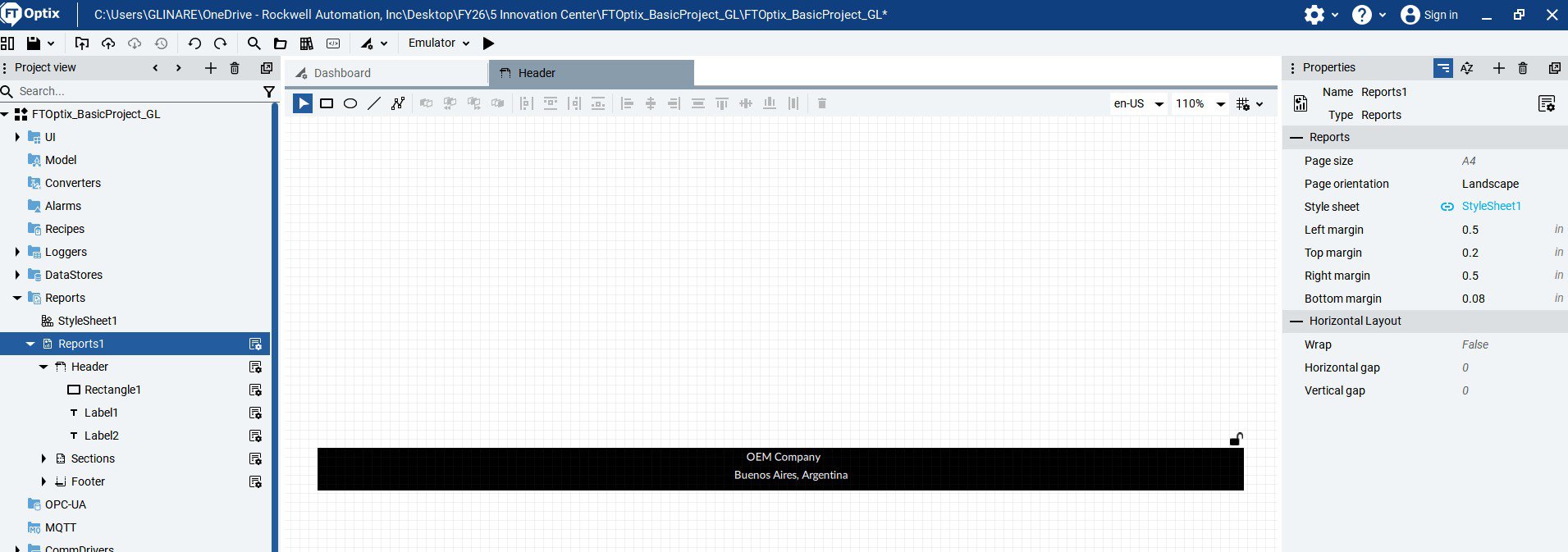
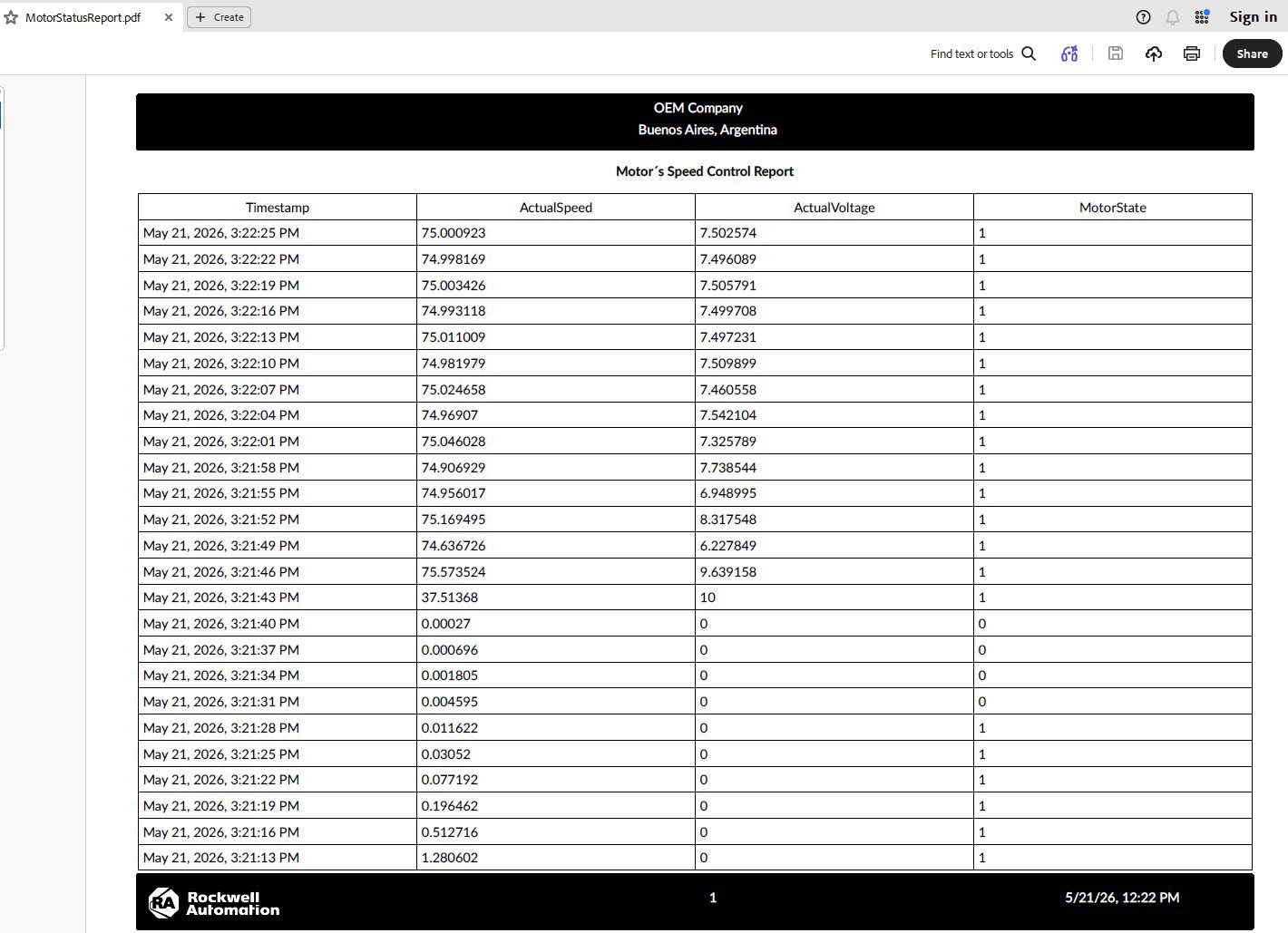
  • Insert a Label object in the Header section for the report title (e.g., "OEM Company Buenos Aires, Argentina") and other elements that appear below.
export-report-variables-from-factorytalk-optix_Image 1.jpg

export-report-variables-from-factorytalk-optix_Image 1.jpg

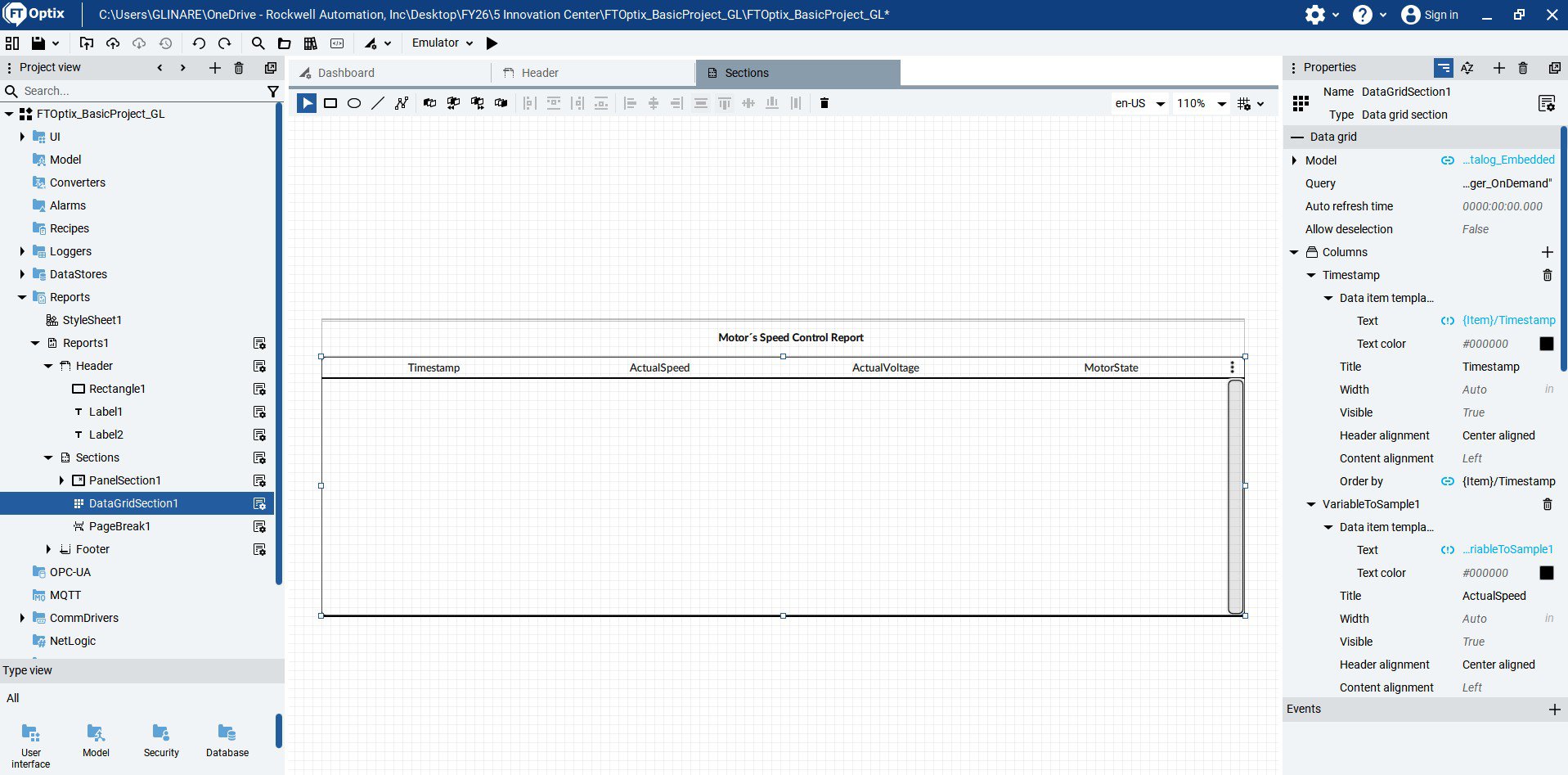
  • In the Sections area, insert a DataGrid component to display historical tabular data.
export-report-variables-from-factorytalk-optix_Image 2.jpg

export-report-variables-from-factorytalk-optix_Image 2.jpg

Step 3
 
Link Data to the Report (Native Data Binding)
  • Select the DataGrid component that you inserted within the report visual template.
  • In the Properties panel (on the right), locate the Model property.
  • Click on the dynamic link icon (the Dynamic Link indicator diamond).
  • Navigate through the Information Model tree and point directly to your historical data source, for example: Model/DataLoggers/PlantDataLogger/DatalogEmbedded (or the Store table associated with the Data Logger).
  • The component will automatically map the relational database columns (timestamps, process variables, states) within the report view.


Configure the Generation Trigger in the UI (Trigger) and Configure the PDF Output Parameters

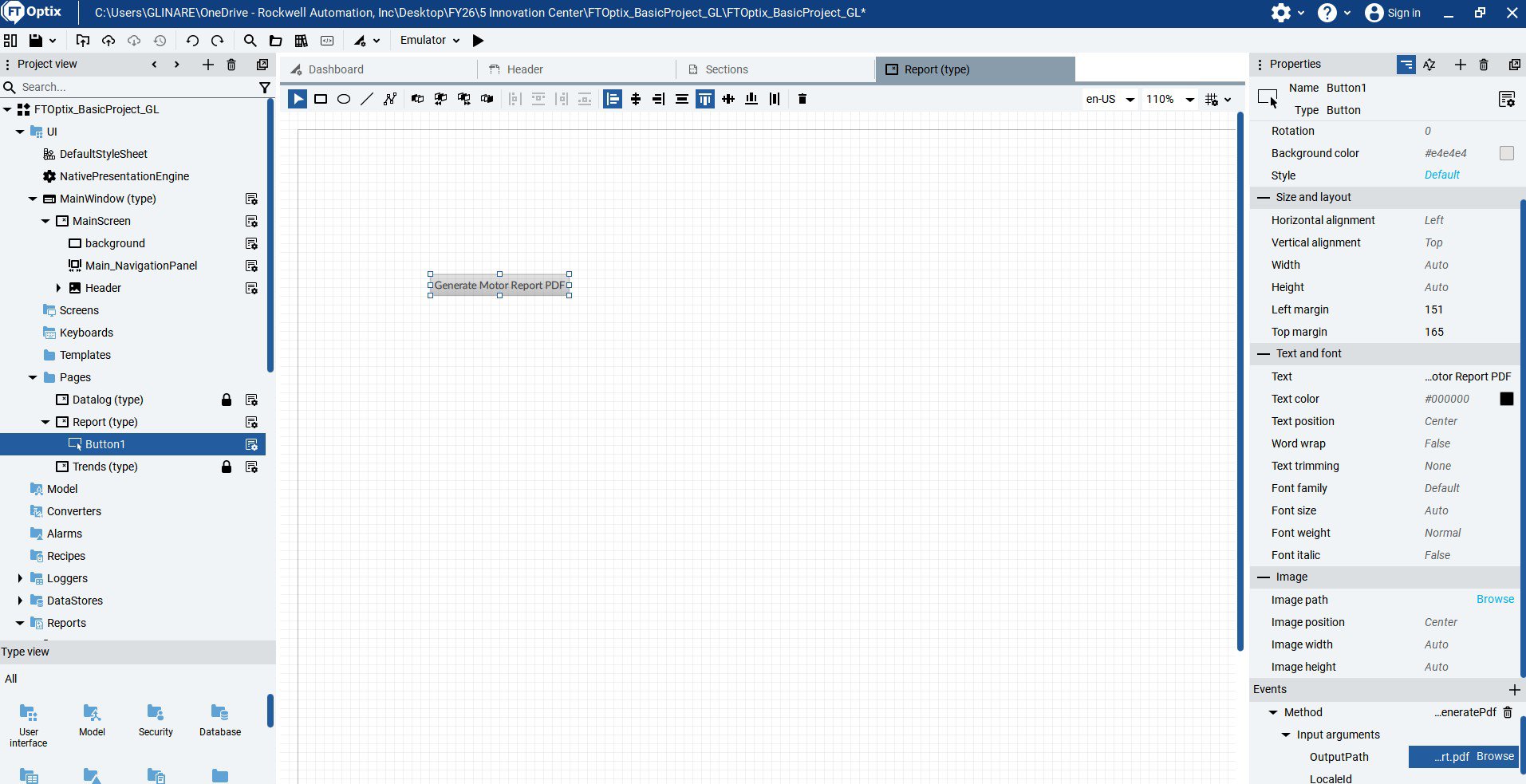
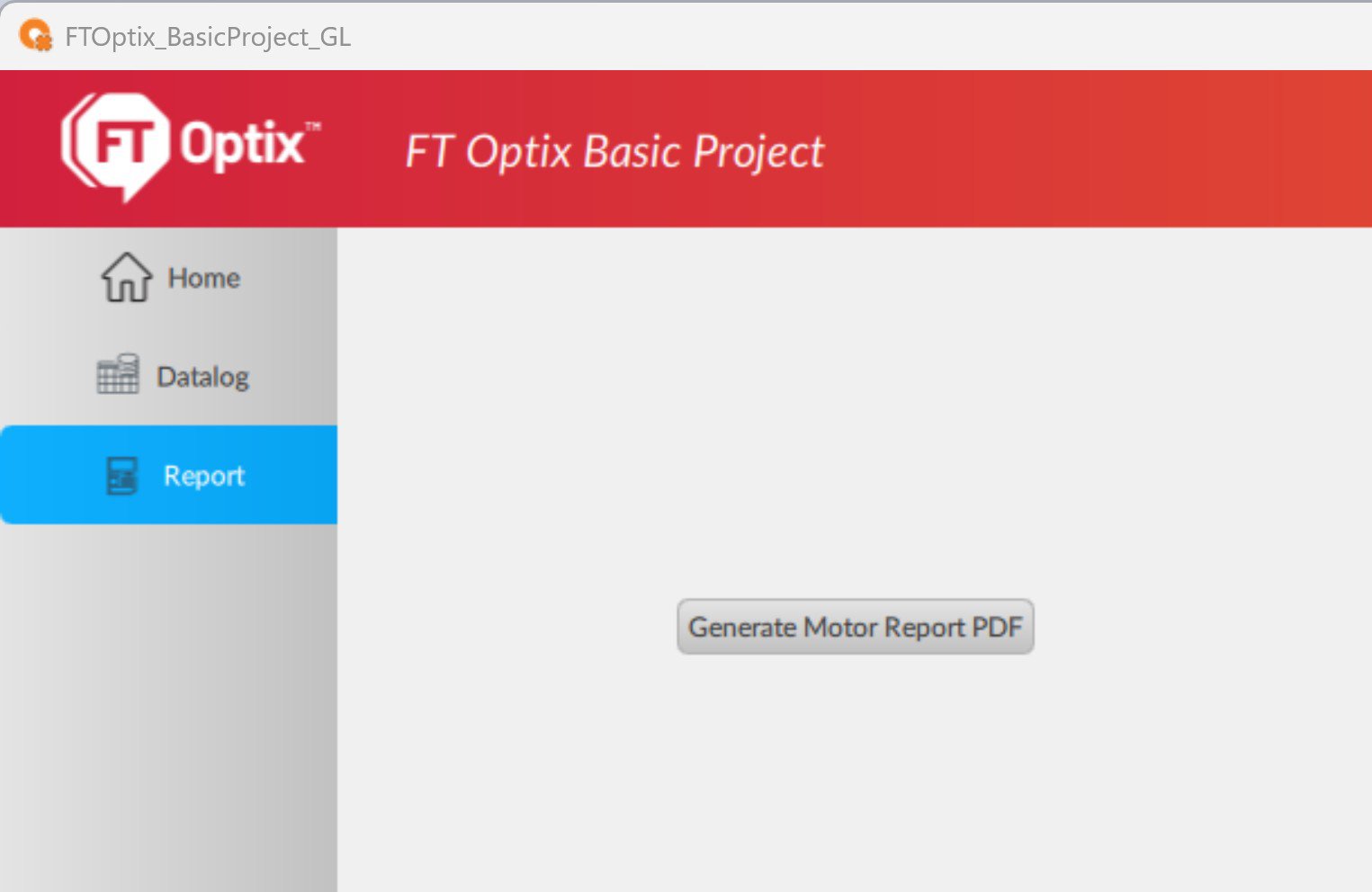
  • Go to UI -> MainWindow (Type) and add a Panel object (Type) named Report (Type) where the print button will be placed.
  • Insert a Button component and change its text to "Generate PDF Report".
  • Select the button, go to the Properties panel and locate the Events section.
  • In the MouseClick event, click the + button to add a new native action.
  • Select the ExecuteMethod action.
  • In the Method field, click the Information Model selector, navigate to your report node (Reports/Reports1) and select the native method GeneratePdf.
  • OutputPath: Path and name of the output file. To make it dynamic and compatible with any platform (Windows/Linux/OptixPanel), use the Runtime local storage syntax: Path\MotorStatusReport.pdf.

     
export-report-variables-from-factorytalk-optix_Image 3.jpg

export-report-variables-from-factorytalk-optix_Image 3.jpg

Step 4
 

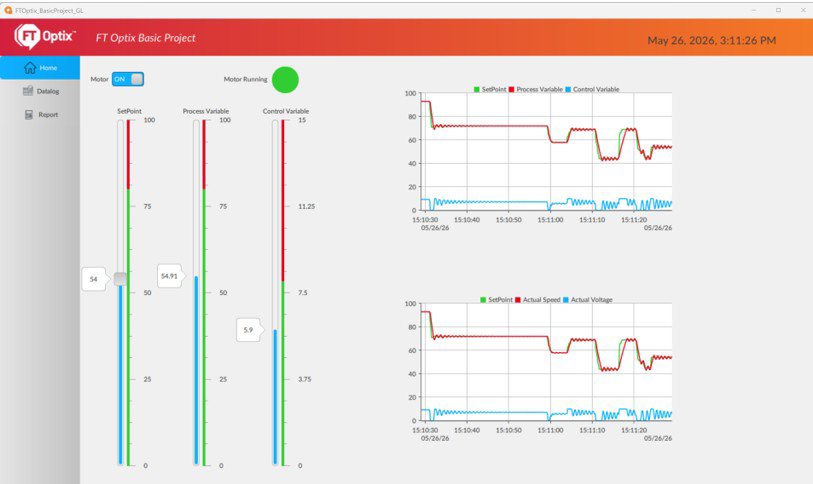
Run the FT Optix Emulator, establish connection with FT Echo and Studio 5000, and press the button after changing some motor variables.

export-report-variables-from-factorytalk-optix_Image 4.jpg

export-report-variables-from-factorytalk-optix_Image 4.jpg

export-report-variables-from-factorytalk-optix_Image 5.jpg

export-report-variables-from-factorytalk-optix_Image 5.jpg

export-report-variables-from-factorytalk-optix_Image 6.jpg

export-report-variables-from-factorytalk-optix_Image 6.jpg

export-report-variables-from-factorytalk-optix_Image 1.jpg

export-report-variables-from-factorytalk-optix_Image 1.jpg

export-report-variables-from-factorytalk-optix_Image 2.jpg

export-report-variables-from-factorytalk-optix_Image 2.jpg

export-report-variables-from-factorytalk-optix_Image 3.jpg

export-report-variables-from-factorytalk-optix_Image 3.jpg

export-report-variables-from-factorytalk-optix_Image 4.jpg

export-report-variables-from-factorytalk-optix_Image 4.jpg

export-report-variables-from-factorytalk-optix_Image 5.jpg

export-report-variables-from-factorytalk-optix_Image 5.jpg

export-report-variables-from-factorytalk-optix_Image 6.jpg

export-report-variables-from-factorytalk-optix_Image 6.jpg


Remote variable logging with FactoryTalk Optix

Version 1.0 - June 2026


AHIC White Logo
Subscribe!

Receive new app releases and other updates from the Innovation Center directly in your inbox.

I want to subscribe.
 
  1. Chevron LeftChevron Left Rockwell Automation Home
  2. Chevron LeftChevron Left Sup...
  3. Chevron LeftChevron Left Pro...
  4. Chevron LeftChevron Left Downloads
  5. Chevron LeftChevron Left Innovation Center
  6. Chevron LeftChevron Left Remote variable logging with FactoryTalk Optix
Please update your cookie preferences to continue.
This feature requires cookies to enhance your experience. Please update your preferences to allow for these cookies:
  • Social Media Cookies
  • Functional Cookies
  • Performance Cookies
  • Marketing Cookies
  • All Cookies
You can update your preferences at any time. For more information please see our {0} Privacy Policy
CloseClose