Loading
Innovation Center LOGO
Recent ActivityRecent Activity

Microsoft Teams Notifications with FactoryTalk Optix

Learning how to send notifications to Microsoft Teams is a common need for users who want to communicate plant events or conditions, support decision-making, and optimize information flow. - [Implementation time: 30 Minutes]
Innovation Center Home Page
Business email notification concept with envelope icon over smartphone and computer keyboard. Digital communication, online messaging, inbox alert, marketing automation corporate technology network.
 
Innovation Center LOGO
  • Overview
  • Implementation Guide
  • Download
  • Contact us
  • Subscribe
Innovation Center Home Page
 

What does this application do?

The application was developed using FactoryTalk Optix software. Its primary objective is to send system status notifications to MS Teams, thereby streamlining information flow and facilitating decision-making based on the data transmitted. This solution leverages the advanced capabilities of FactoryTalk Optix—ranging from visualization and data management to C#-based programming structures—to keep operations at the forefront of technology. It helps address the challenges of today's industrial landscape by utilizing JSON to structure the messages being sent.

  1. Features
  2. Advantages
Open All Close All
Features

FactoryTalk Optix helps improve your processes, efficiency, and end products—all through a single, accessible tool—by leveraging collaboration, scalability, and interoperability to realize your digital transformation vision.

FT Optix stands out for its ability to connect to a wide range of industrial devices and protocols—such as OPC UA, EtherNet/IP, PROFINET, Modbus, HTTPS, and MQTT—enabling real-time integration and monitoring of equipment from various manufacturers via a unified IoT platform. Additionally, FactoryTalk Optix allows for the creation of data logs and the storage of that information in an SQL database. This facilitates the visualization of historical alarm trends and the generation of PDF reports as needed, as well as the use of REST APIs with NetLogic to make requests to external services.

Sending messages or notifications to MS Teams is a common requirement for users who need to communicate events or status updates from the plant floor to support decision-making and streamline information flow.

In this scenario, we use JSON for the message structure and Power Automate to generate the trigger that sends the message to MS Teams; internet connectivity is required.

Advantages
  • Use of structured code
  • Flexibility in connectivity
  • Impact on development time
  • Notifications according to operational model
  • Sending messages to MS Teams from an industrial platform
  • High reliability
  • Compatible with implementation in your applications
  • Flexibility and scalability
  • Improved information flow
  • Data optimization
  • Event monitoring
  • Data analysis
AHIC Download ICON VF.png

Downloads

Please note: You will need to agree to the Terms & Conditions for each download.

Downloadable file ›
Legal Disclaimer Acceptance. ROCKWELL AUTOMATION WILL PROVIDE ACCESS TO ROCKWELL PRODUCTS (BEST PRACTICES, APPLICATIONS AND KNOWLEDGE) ON THE CONDITION THAT YOU ACCEPT AND COMPLY WITH THE FOLLOWING TERMS AND CONDITIONS. YOU ACCEPT AND AGREE TO BE BOUND BY THE TERMS OF THIS AGREEMENT BY DOWNLOADING, INSTALLING, COPYING, OR OTHERWISE USING PRODUCTS. IF YOU ARE ACCEPTING THESE TERMS ON BEHALF OF ANOTHER PERSON, COMPANY, OR OTHER LEGAL ENTITY, YOU REPRESENT AND WARRANT THAT YOU HAVE FULL AUTHORITY TO BIND THAT PERSON, COMPANY, OR LEGAL ENTITY TO THESE TERMS. IF YOU DO NOT AGREE TO THESE TERMS, DO NOT DOWNLOAD, INSTALL, COPY, ACCESS, OR USE THE PRODUCTS, SOFTWARE AND/OR CLOUD SERVICES. 1. Rockwell Automation retains full ownership and title to all Products and related documentation. No rights or licenses are granted other than those set forth in this Agreement. Company grants to Rockwell Automation a non-exclusive, worldwide, royalty-free, perpetual, non-revocable license to use any feedback Company provides regarding the Products, even if Company has designated the feedback as confidential. Rockwell Automation will be entitled to use the feedback without restriction or compensation to Company. 2. Company may not lease sub-lease, assign, license, sub-license or otherwise transfer any of the Products without the prior written consent of Rockwell Automation. Company may not assign or otherwise transfer access rights to the Products without the prior written consent of Rockwell Automation. Any reverse assembly, reverse engineering, decompilation, and creation of derivative works based on the Products by Company is prohibited. 3. Company acknowledges that Products provided under this Agreement are Rockwell Automation’s Confidential Information and are covered by effective or pending copyrights, patents, trademarks and/or trade secrets of Rockwell Automation, and Company agrees to maintain confidentiality by not disclosing Products or documentation to any third party without the prior written consent of Rockwell Automation and to protect the confidentiality of the Products as it would Company’s own confidential information. Company agrees that its obligation of confidentiality under this paragraph shall survive expiration or termination of this Agreement. 4. Company agrees that Products provided under this Agreement are prototypes and examples and its application and results may vary depending on each customer and project conditions. Rockwell Automation do not warranty the same results. This Agreement shall in no way be construed as a commitment by Rockwell Automation at any time to manufacture and/or offer Products for sale. There is no explicit or implicit service level agreement associated with using the Products. Rockwell Automation does not warrant that the functions contained in the Products will meet Company’s requirements. Company agrees to use all Products only in accordance with the instructions and only for the intended usages identified in the documentation. 5. EXCLUSION OF WARRANTIES AND LIMITATION OF LIABILITY. THE PRODUCTS ARE PROVIDED "AS IS". ROCKWELL AUTOMATION DISCLAIMS ANY AND ALL WARRANTIES, EXPRESS, IMPLIED OR STATUTORY, INCLUDING WITHOUT LIMITATION ANY WARRANTIES OF MERCHANTABILITY OR FITNESS FOR A PARTICULAR PURPOSE. ROCKWELL AUTOMATION EXPLICITLY DISCLAIMS ALL WARRANTIES OF NON- INFRINGEMENT AND EXPRESSLY DOES NOT WARRANT THAT THE PRODUCTS, IN WHOLE OR IN PART, WILL BE ERROR FREE OR FREE FROM SECURITY VULNERABILITIES. IN NO EVENT SHALL ROCKWELL AUTOMATION BE LIABLE FOR (i) LOST PROFITS, LOST SAVINGS, DOWNTIME, SPECIAL, INDIRECT OR CONSEQUENTIAL DAMAGES OF ANY KIND, OR (ii) ANY PERSONAL INJURY, PROPERTY DAMAGE OR ENVIRONMENTAL DAMAGE ARISING OUT OF OR IN CONNECTION WITH THIS AGREEMENT, WHETHER IN AN ACTION IN CONTRACT, STRICT LIABILITY OR IN TORT INCLUDING NEGLIGENCE. 6. COMPANY AGREES TO INDEMNIFY AND HOLD ROCKWELL AUTOMATION HARMLESS FROM ALL COSTS, AWARDS, DAMAGES, EXPENSES AND FEES (INCLUDING ATTORNEYS FEES) RESULTING FROM OR RELATED TO ANY THIRD-PARTY CLAIMS (INCLUDING EMPLOYEES AND AGENTS OF COMPANY) AGAINST ROCKWELL AUTOMATION, ITS DISTRIBUTORS, AGENTS, OFFICERS, DIRECTORS OR EMPLOYEES FOR PERSONAL INJURY (INCLUDING DEATH), PROPERTY DAMAGE OR ENVIRONMENTAL DAMAGE RELATED TO OR RESULTING FROM THE USE OF THE PRODUCTS. 7. In the event a Product is exported, Company agrees to comply with all applicable United States Export Control Law and Regulations, and the applicable export control laws of other countries. This Agreement shall be governed by the laws of the state of Wisconsin. This Agreement is the complete and exclusive Agreement between Rockwell Automation and the Company, and supersedes all prior agreements, whether written or oral, relating to the Products.
AHIC NEED HELP ICON VF.png

Need Help?

If you need help with an application or have feedback from the Innovation Center, please contact us.


Is this application relevant to me?

Having agile notifications—with an information flow that sends alerts directly to Teams from our application—opens up a wide range of possibilities.

This application can complement your projects by enabling the delivery of notifications or information to your company's Teams chats.

It is suitable for any industry or industrial sector where there is a need to share information via Teams.

This functionality can be replicated as often as necessary across your projects, enhancing product value, optimizing implementation costs, and leveraging a continuous flow of information from the shop floor to your communication platform, such as Teams.


How can I make it work?

Requirements: products, tools, prior knowledge.

Hardware

  • Controllers compatible with FT Optix connectivity

Software

  • FactoryTalk Optix (V1.7.1)

Prior Knowledge

  • Basic knowledge in FactoryTalk Optix and C#. 


AHIC STEP ICON.png

Implementation Guide

 
  1. Step 1
  2. Step 2
  3. Step 3.1
  4. Step 3.2
  5. Step 3.3
  6. Step 3.4
  7. Step 3.5
  8. Step 3.6
  9. Step 4.1
  10. Step 4.2
  11. Step 5
  12. Step 6
Open All Close All
Step 1
 

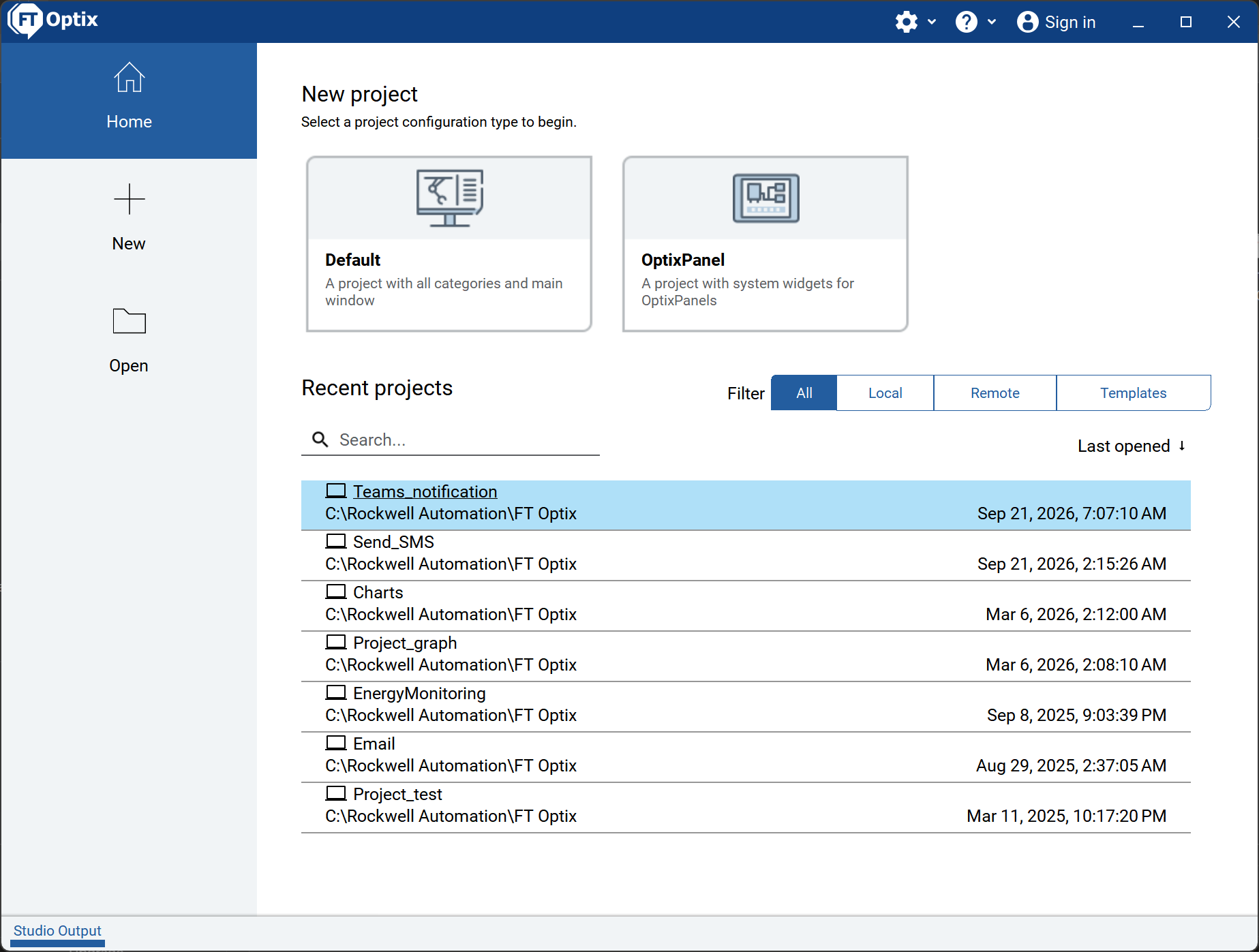
Identify the application to use: FactoryTalk Optix.

Open the file Teams_notification, in the location where you have downloaded it.


Make sure you have .NET SDK x64 installed. https://dotnet.microsoft.com/en-us/download


microsoft-teams-notifications-with-factorytalk-optix_Step1.png

microsoft-teams-notifications-with-factorytalk-optix_Step1.png

Step 2
 

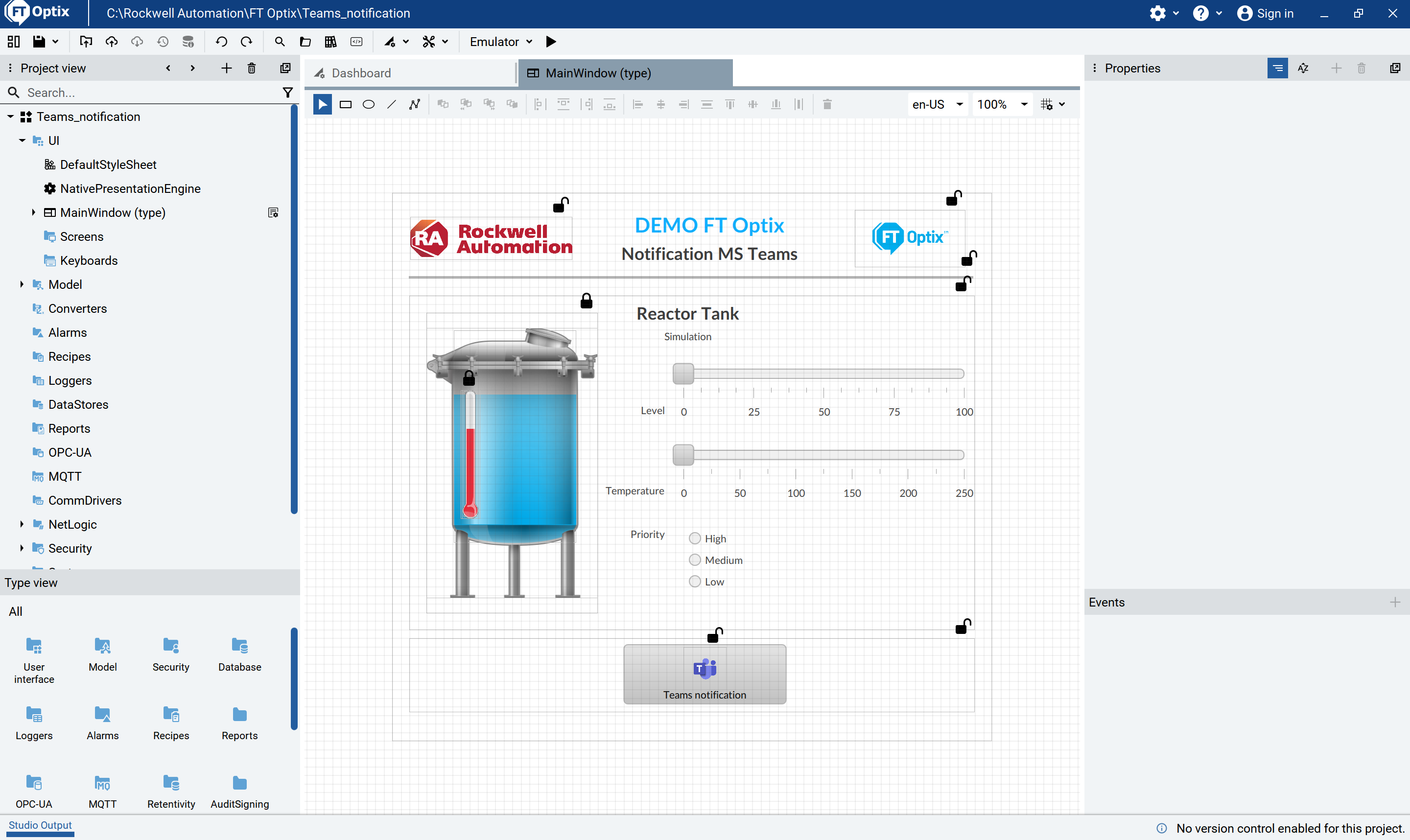
Navigate the application, open the Main Window, where you can see the elements that make up this demo.

microsoft-teams-notifications-with-factorytalk-optix_Step2.png

microsoft-teams-notifications-with-factorytalk-optix_Step2.png

Step 3.1
 

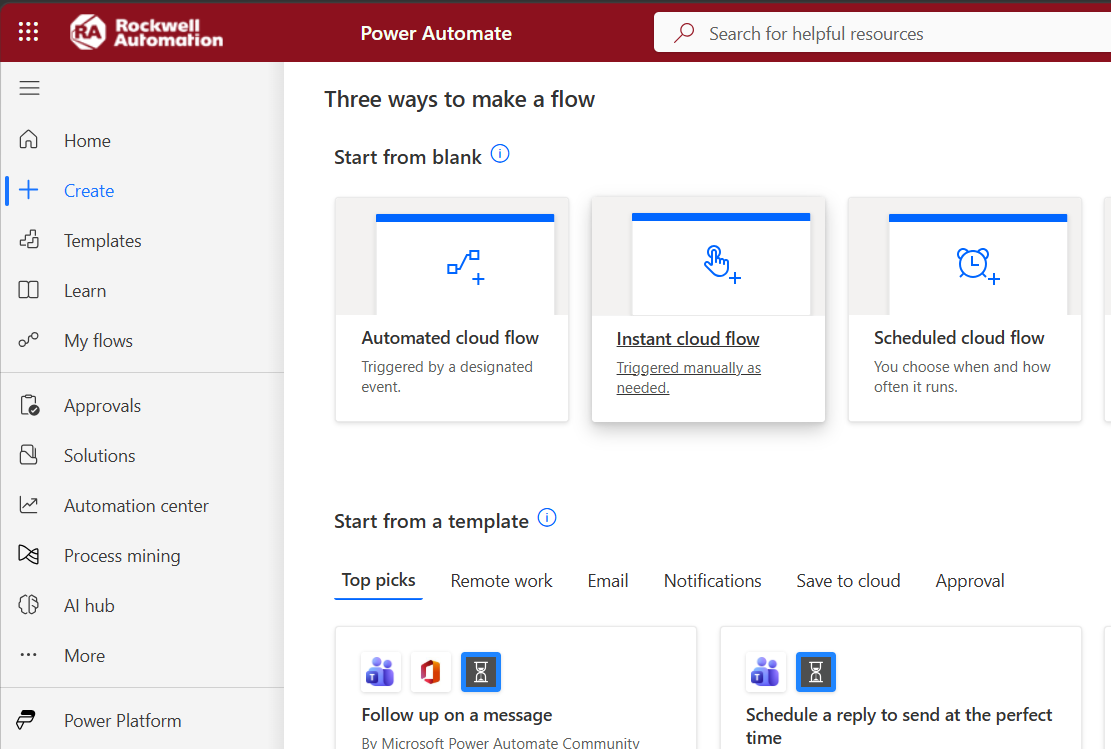
Create an Instant Cloud Flow from your MS Power Automate platform. https://make.powerautomate.com/

microsoft-teams-notifications-with-factorytalk-optix_Step3_1.png

microsoft-teams-notifications-with-factorytalk-optix_Step3_1.png

Step 3.2
 

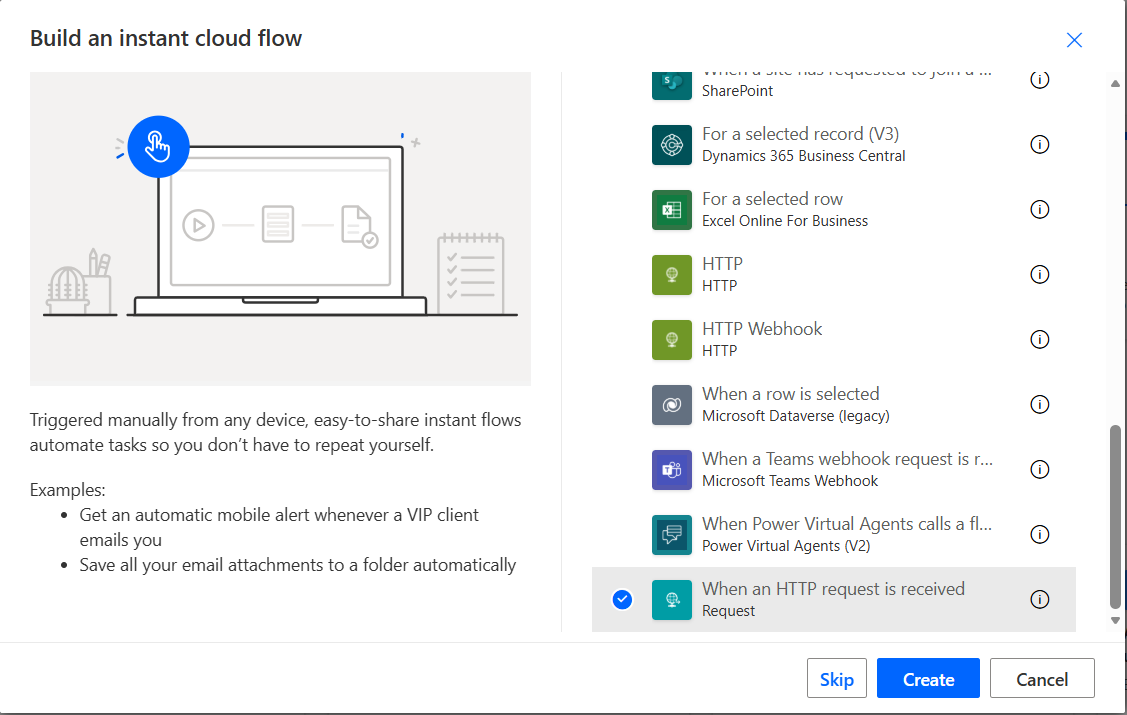
Select When an HTTP request is received trigger.

microsoft-teams-notifications-with-factorytalk-optix_Step3_2.png

microsoft-teams-notifications-with-factorytalk-optix_Step3_1.png

Step 3.3
 

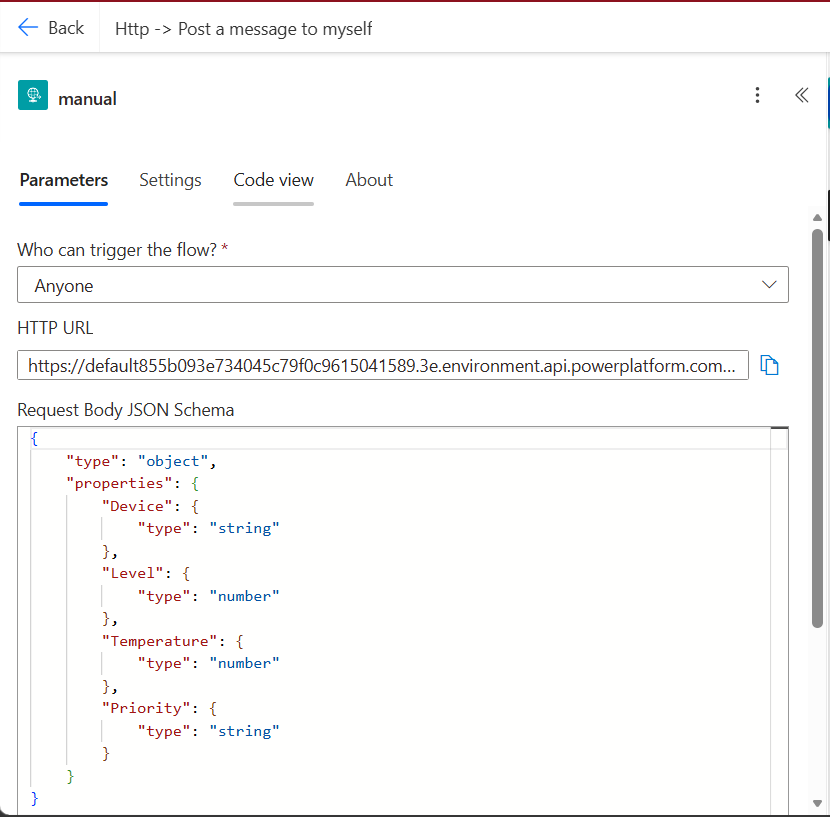
Define the structure of the JSON to be received from FT Optix.

{
    "type": "object",
    "properties": {
        "Device": {
            "type": "string"
        },
        "Level": {
            "type": "number"
        },
        "Temperature": {
            "type": "number"
        },
        "Priority": {
            "type": "string"
        }
    }
}
microsoft-teams-notifications-with-factorytalk-optix_Step3_3.png

microsoft-teams-notifications-with-factorytalk-optix_Step3_1.png

Step 3.4
 

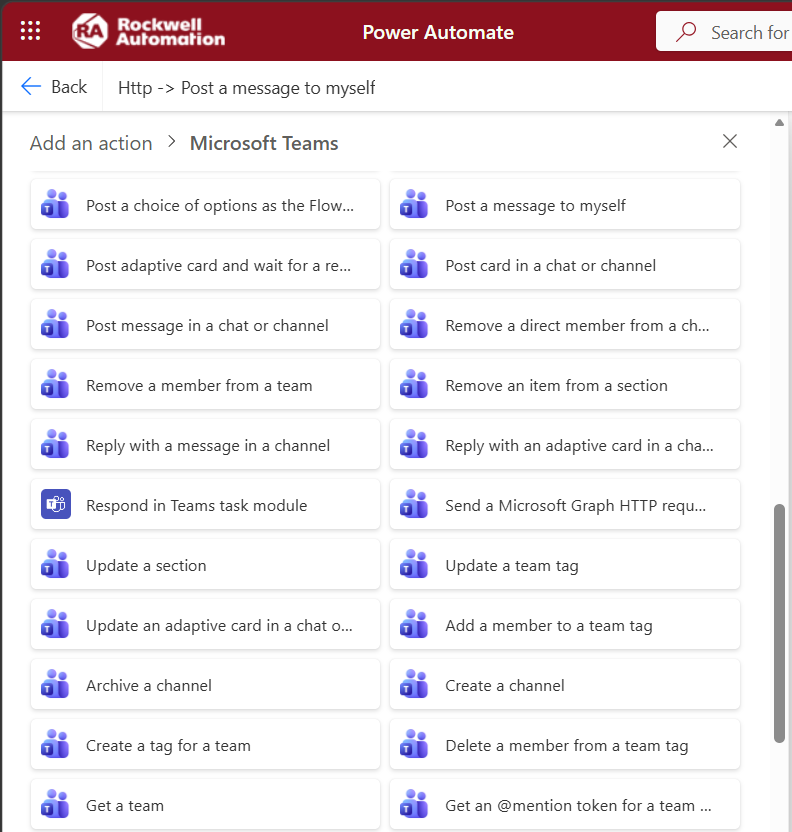
Insert a Teams action: Post a message to myself.

microsoft-teams-notifications-with-factorytalk-optix_Step3_4.png

microsoft-teams-notifications-with-factorytalk-optix_Step3_4.png

Step 3.5
 

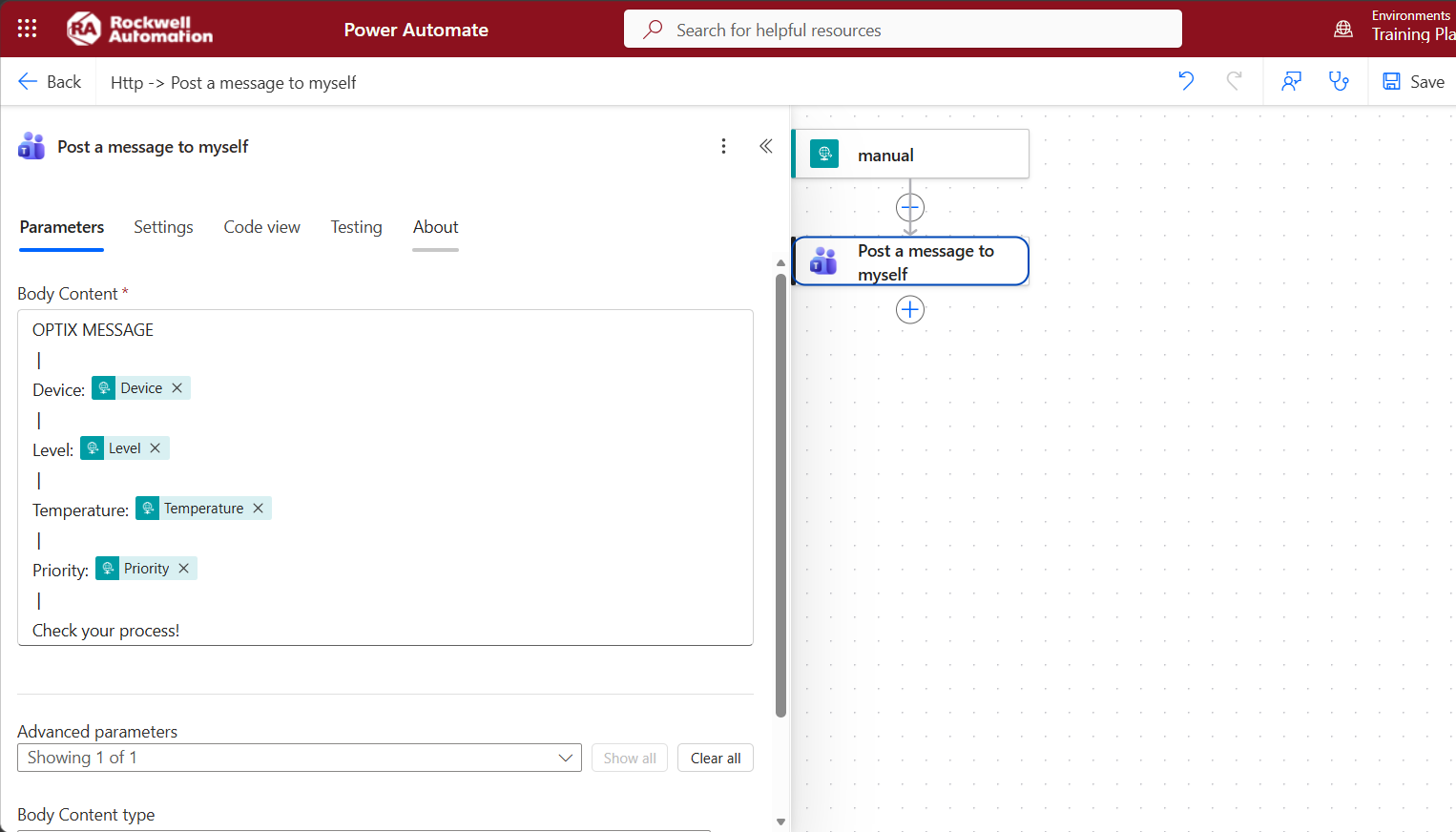
In the content structure, use the JSON variables to display the message in Teams.

OPTIX MESSAGE
|
Device: @{triggerBody()['Device']}
|
Level: @{triggerBody()?['Level']}
|
Temperature: @{triggerBody()?['Temperature']}
|
Priority: @{triggerBody()['Priority']}
|
Check your process!
microsoft-teams-notifications-with-factorytalk-optix_Step3_5.png

microsoft-teams-notifications-with-factorytalk-optix_Step3_5.png

Step 3.6
 

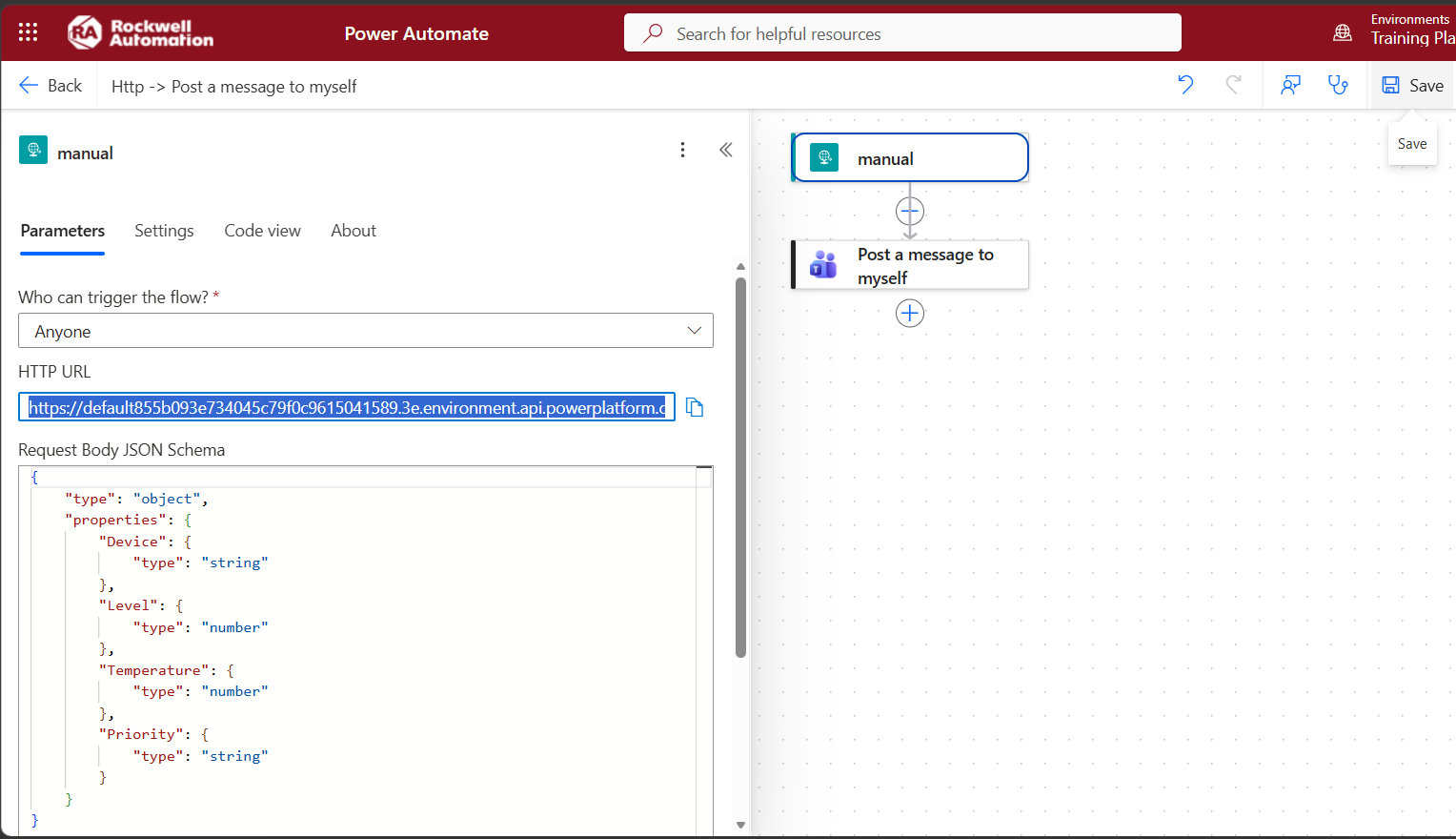
After saving the flow with the configured actions, copy the HTTP URL link that we will use in FT Optix.

microsoft-teams-notifications-with-factorytalk-optix_Step3_6.png

microsoft-teams-notifications-with-factorytalk-optix_Step3_6.png

Step 4.1
 

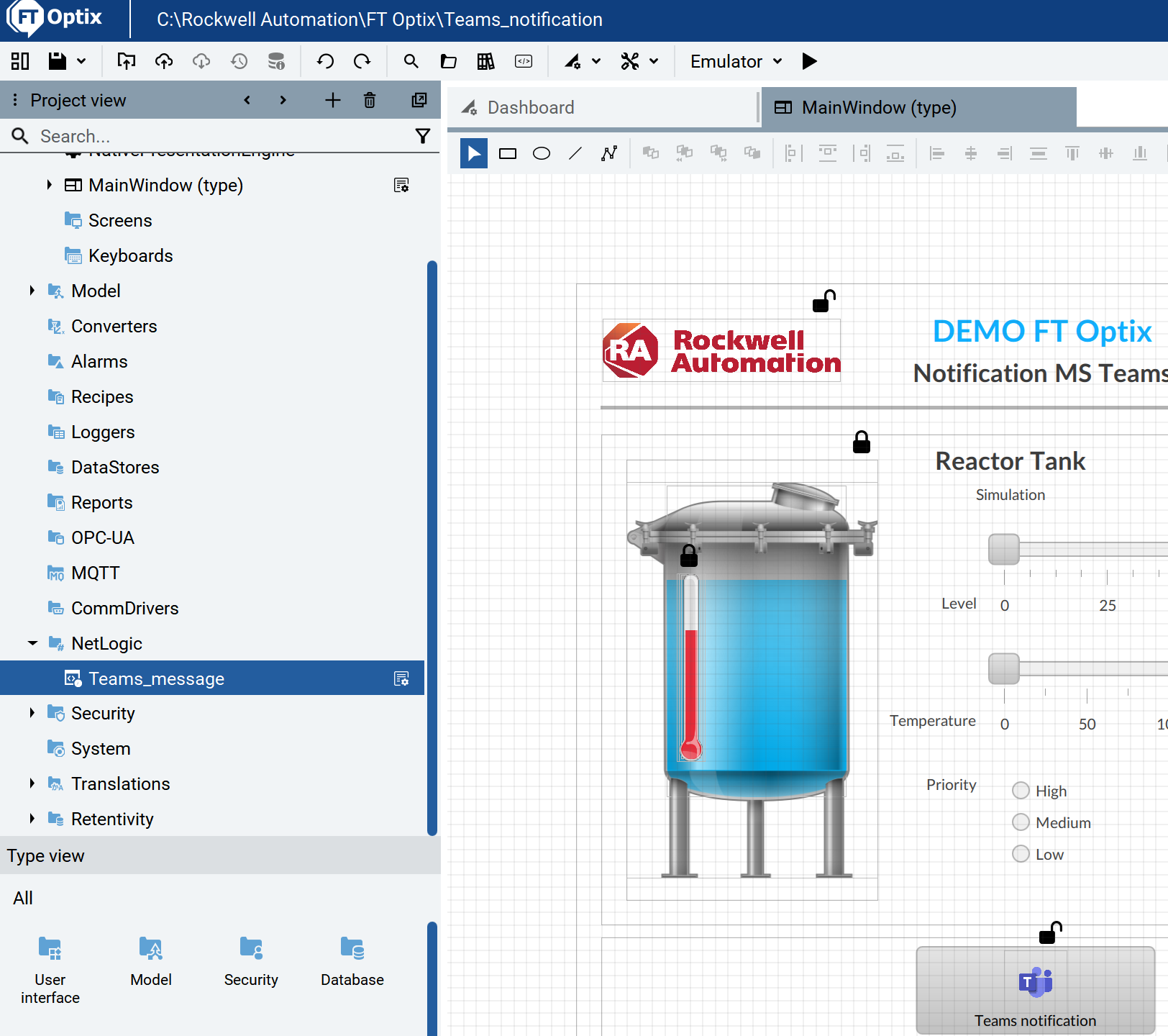
In the project view locate the NetLogic Teams_message, which contains the code for sending messages to MS Teams chat using the JSON structure. 

microsoft-teams-notifications-with-factorytalk-optix_Step4_1.png

microsoft-teams-notifications-with-factorytalk-optix_Step4_1.png

Step 4.2
 

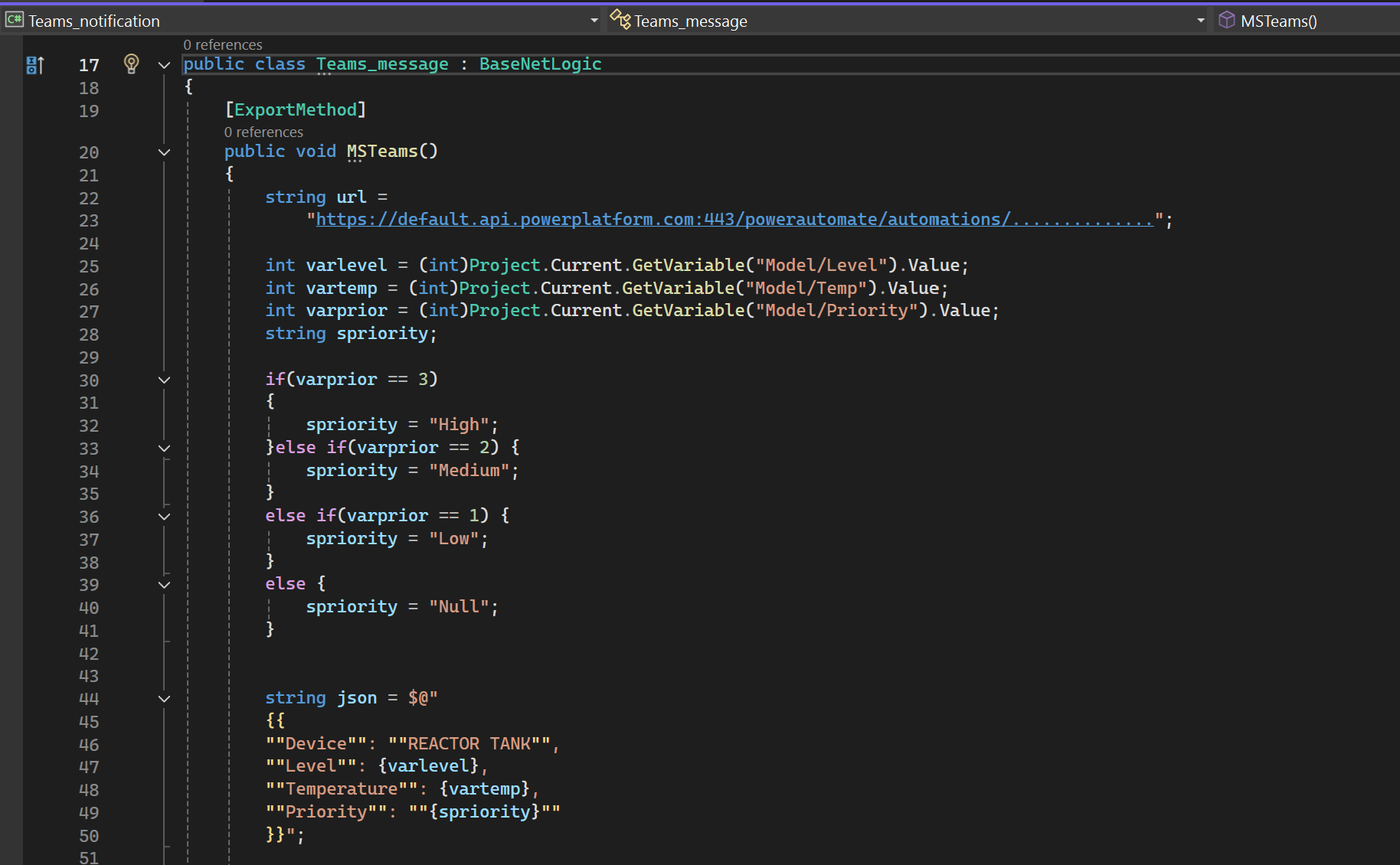
Paste the HTTP URL link you obtained from Power Automate (Step 3.6) into line 23.


The JSON to be sent to Teams is structured within the code.

  • Device: “REACTOR TANK”
  • Level: varlevel
  • Temperature: vartemp
  • Priority: spriority

The code is compiled Teams_message.cs

microsoft-teams-notifications-with-factorytalk-optix_Step4_2.png

microsoft-teams-notifications-with-factorytalk-optix_Step4_1.png

Step 5
 

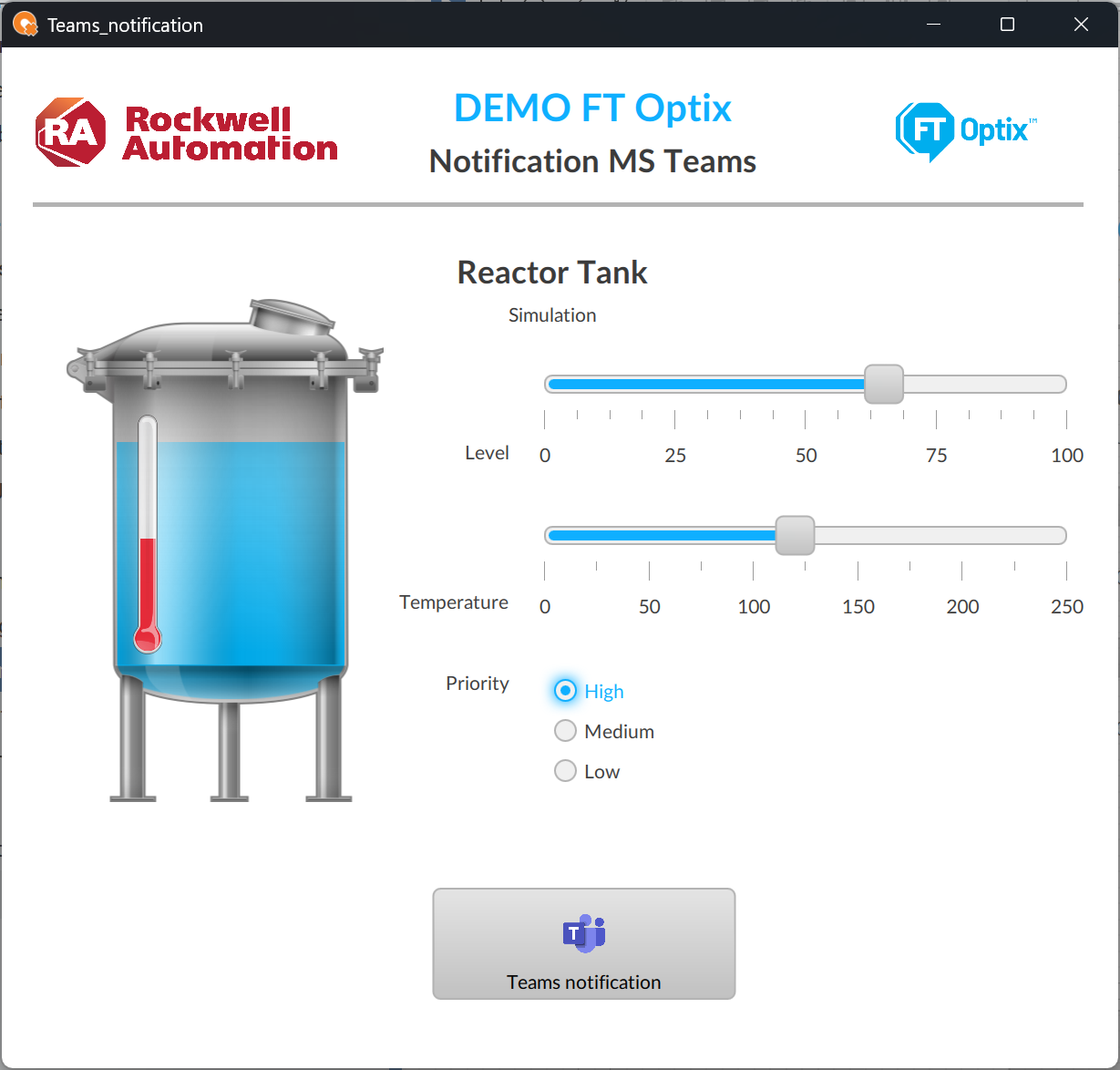
Run the application to see how it works.

As an example, you will see a reactor displaying water level, temperature, and priority; these variables are sent to MS Teams.

microsoft-teams-notifications-with-factorytalk-optix_Step5.png

microsoft-teams-notifications-with-factorytalk-optix_Step5.png

Step 6
 

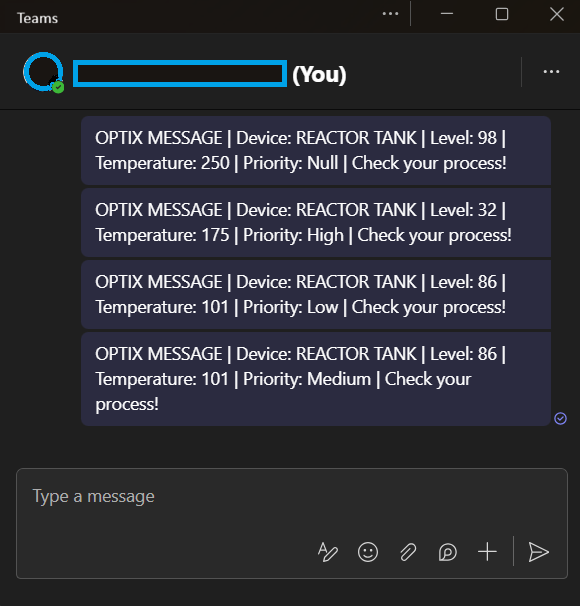
Once the notification has been sent to Teams, we will have the information structured in our application.

microsoft-teams-notifications-with-factorytalk-optix_Step6.png

microsoft-teams-notifications-with-factorytalk-optix_Step5.png

microsoft-teams-notifications-with-factorytalk-optix_Step1.png

microsoft-teams-notifications-with-factorytalk-optix_Step1.png

microsoft-teams-notifications-with-factorytalk-optix_Step2.png

microsoft-teams-notifications-with-factorytalk-optix_Step2.png

microsoft-teams-notifications-with-factorytalk-optix_Step3_1.png

microsoft-teams-notifications-with-factorytalk-optix_Step3_1.png

microsoft-teams-notifications-with-factorytalk-optix_Step3_2.png

microsoft-teams-notifications-with-factorytalk-optix_Step3_2.png

microsoft-teams-notifications-with-factorytalk-optix_Step3_3.png

microsoft-teams-notifications-with-factorytalk-optix_Step3_3.png

microsoft-teams-notifications-with-factorytalk-optix_Step3_4.png

microsoft-teams-notifications-with-factorytalk-optix_Step3_4.png

microsoft-teams-notifications-with-factorytalk-optix_Step3_5.png

microsoft-teams-notifications-with-factorytalk-optix_Step3_5.png

microsoft-teams-notifications-with-factorytalk-optix_Step3_6.png

microsoft-teams-notifications-with-factorytalk-optix_Step3_6.png

microsoft-teams-notifications-with-factorytalk-optix_Step4_1.png

microsoft-teams-notifications-with-factorytalk-optix_Step4_1.png

microsoft-teams-notifications-with-factorytalk-optix_Step4_2.png

microsoft-teams-notifications-with-factorytalk-optix_Step4_2.png

microsoft-teams-notifications-with-factorytalk-optix_Step5.png

microsoft-teams-notifications-with-factorytalk-optix_Step5.png

microsoft-teams-notifications-with-factorytalk-optix_Step6.png

microsoft-teams-notifications-with-factorytalk-optix_Step6.png


Microsoft Teams Notifications with FactoryTalk Optix

Version 1.0 - September 2026


AHIC White Logo

Receive new applications and Innovation Center updates directly in your inbox.

Subscribe!
 
  1. Chevron LeftChevron Left Rockwell Automation Home
  2. Chevron LeftChevron Left Sup...
  3. Chevron LeftChevron Left Pro...
  4. Chevron LeftChevron Left Downloads
  5. Chevron LeftChevron Left Innovation Center
  6. Chevron LeftChevron Left Microsoft Teams Notifications with FactoryTalk Optix
Please update your cookie preferences to continue.
This feature requires cookies to enhance your experience. Please update your preferences to allow for these cookies:
  • Social Media Cookies
  • Functional Cookies
  • Performance Cookies
  • Marketing Cookies
  • All Cookies
You can update your preferences at any time. For more information please see our {0} Privacy Policy
CloseClose