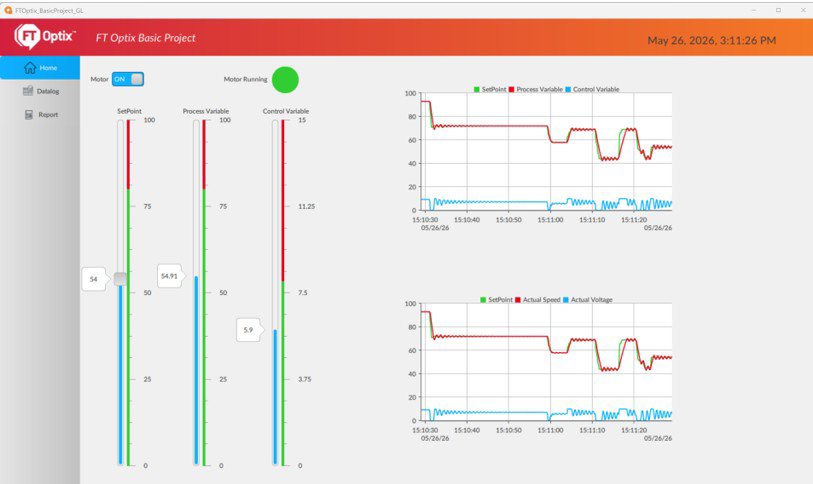
Step-by-step process for generating PDF reports of process variables from the simulated operation of an electric motor. Additionally, this application provides a framework for building a first application in FT Optix. - [Implementation time: 30 Minutes]
The native generation of PDF reports without coding in FactoryTalk Optix enables automated digitalization of production, audit, and quality control data directly at the Edge. This function is critical for traceability compliance, allowing operators to export summaries of alarms, trends, and historical variables with a single click into a PDF file.
Additionally, the FT Optix application provides a reference framework for building your first FT Optix application.
Is this useful to me?
This is useful for users who have questions about how to create their first FT Optix projects, as well as for generating reports of process variables logged remotely from any database.
Application areas: Any type of industry that requires variable logging.
Downloads
Please note: You will need to agree to the Terms & Conditions for each download.
To better understand the objects used in the application, it is recommended to understand their meaning.
Navigation Panel - A user interface (UI) component designed to manage navigation between different application screens. It allows switching visual containers in an automated and structured manner using native events, enabling efficient and intuitive workflows for the operator without overloading the rendering thread.
Panel (Type) - A base visual node that acts as a general-purpose container in the user interface. As it is treated as a Type, it allows inheritance, mass instantiation, and the creation of custom templates (widgets). It can host local logic, variable collections, or complex layouts, serving as a modular building block of the interface.
DataGrid - An advanced tabular visual component designed for real-time visualization and editing of large volumes of structured data (such as database records, controller arrays, or alarm lists). It supports dynamic binding to data models (Model) and direct interaction with rows/columns exposed as objects within the session information model.
GridLayout - A UI layout control that automatically organizes its child nodes into a two-dimensional matrix structure of flexible or fixed-size rows and columns. It optimizes High-Performance HMI design, ensuring that diagnostic visual elements maintain consistent proportions and strict alignment when screen resolution changes or during remote web access.
Data Logger - A core module of FactoryTalk Optix responsible for sampling, storing, and transferring historical process and status variables into a data store. It supports time-based (periodic) or event-based (change-of-state) triggers, natively translating controller tags into relational structures compatible with IT systems.
Datalog Embedded - A specific storage engine configuration in which the history collected by the Data Logger is directly written to a local runtime database based on SQLite technology. This solution does not require external servers, making it ideal for Edge applications or closed devices such as OptixPanel, operating efficiently within the token-based licensing model (included with Data Logger).
Reports - A native component and rendering engine responsible for automated generation and export of reports in PDF format based on visual design templates (UI). It allows associating model variables and dynamic SQL queries directly with the final document for audit, quality control, and regulatory compliance (such as CFR21 Part 11).
To create and configure a PDF report using the native functions and interconnections of the Information Model in FactoryTalk Optix Studio, follow these steps:
Instantiate the Reports Engine and Visual Template
In the Project Panel, expand the main project node.
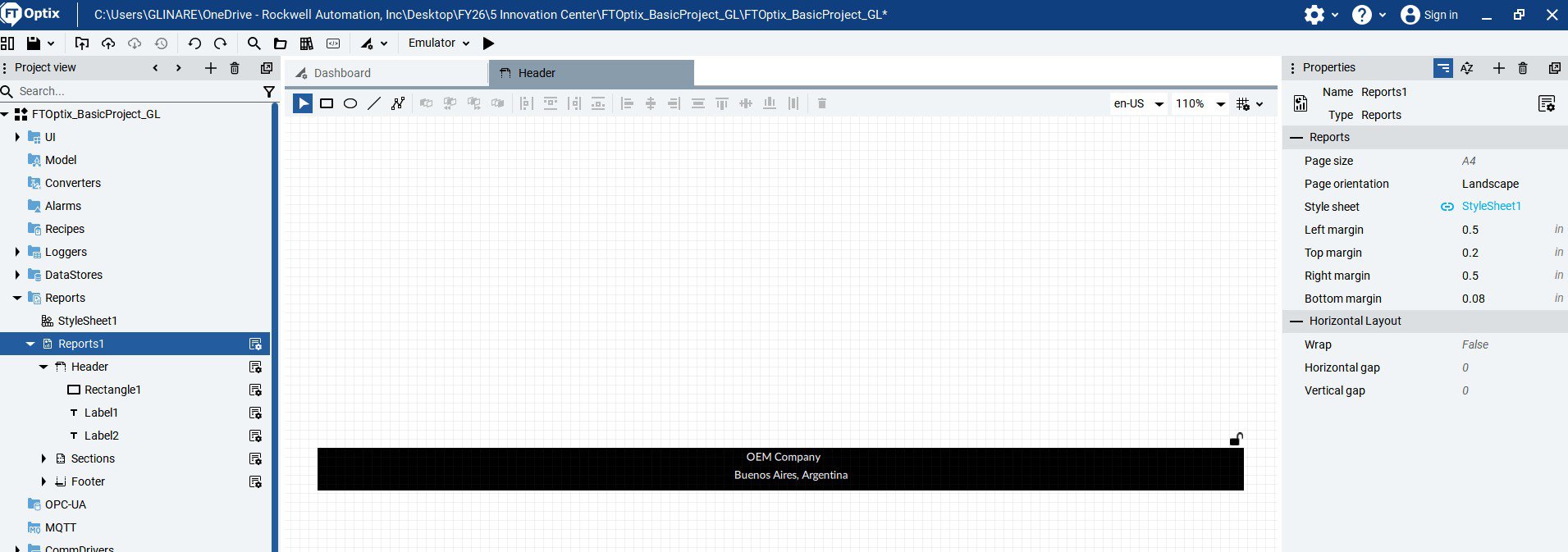
Right-click the Reports folder (or project root) and select New -> Report. A new node will be created acting as the report generation engine. Name it Reports1.
When creating the report, a visual container is automatically added under the UI folder: Navigate to UI -> Reports and locate the associated visual panel (usually named Reports1)
This is the report template.
Double-click the panel to open the graphical editor. Design the report layout using High-Performance HMI guidelines.
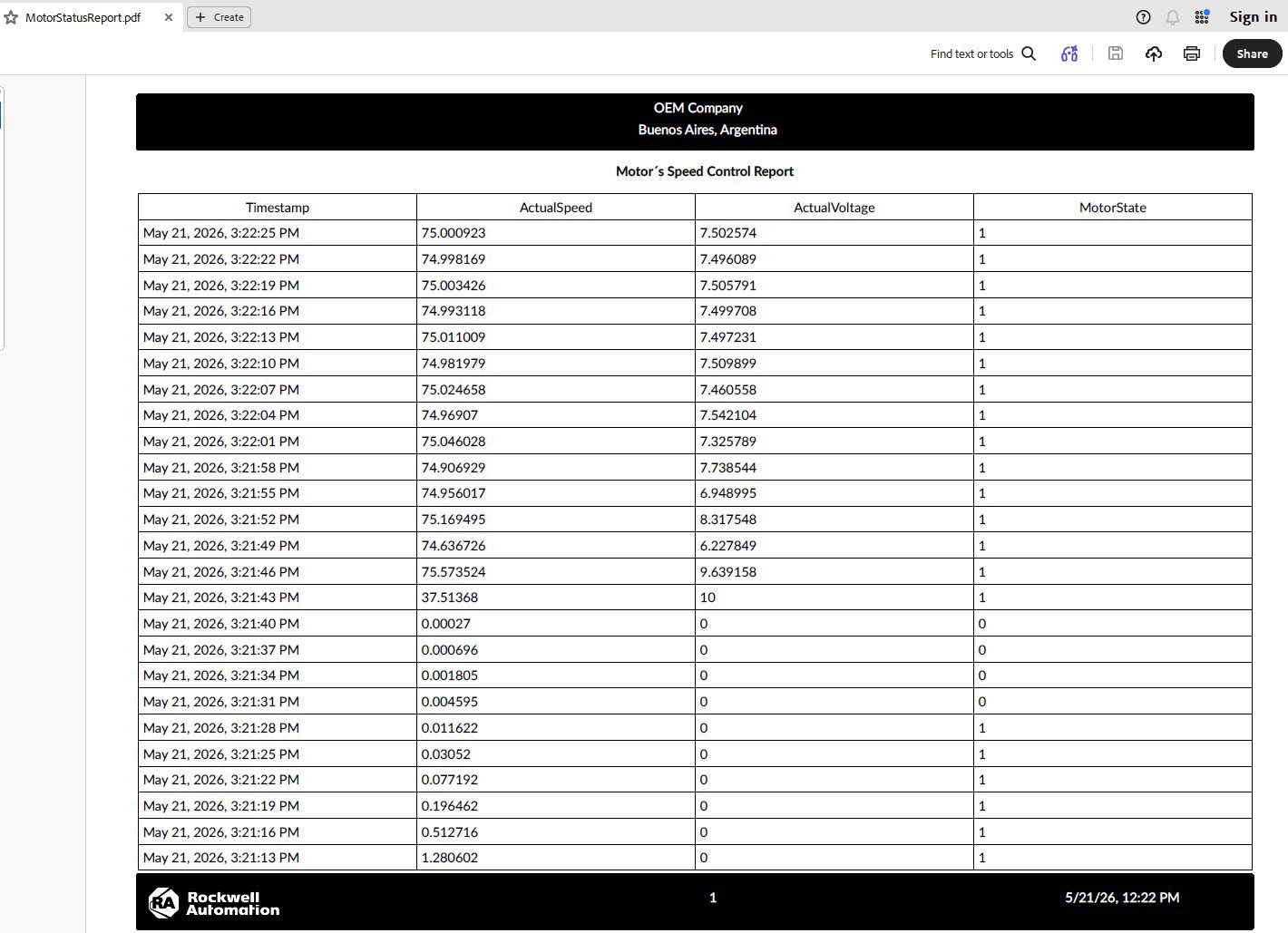
Example: Insert a Label object in the header for the report title (e.g., "OEM Company Buenos Aires, Argentina")
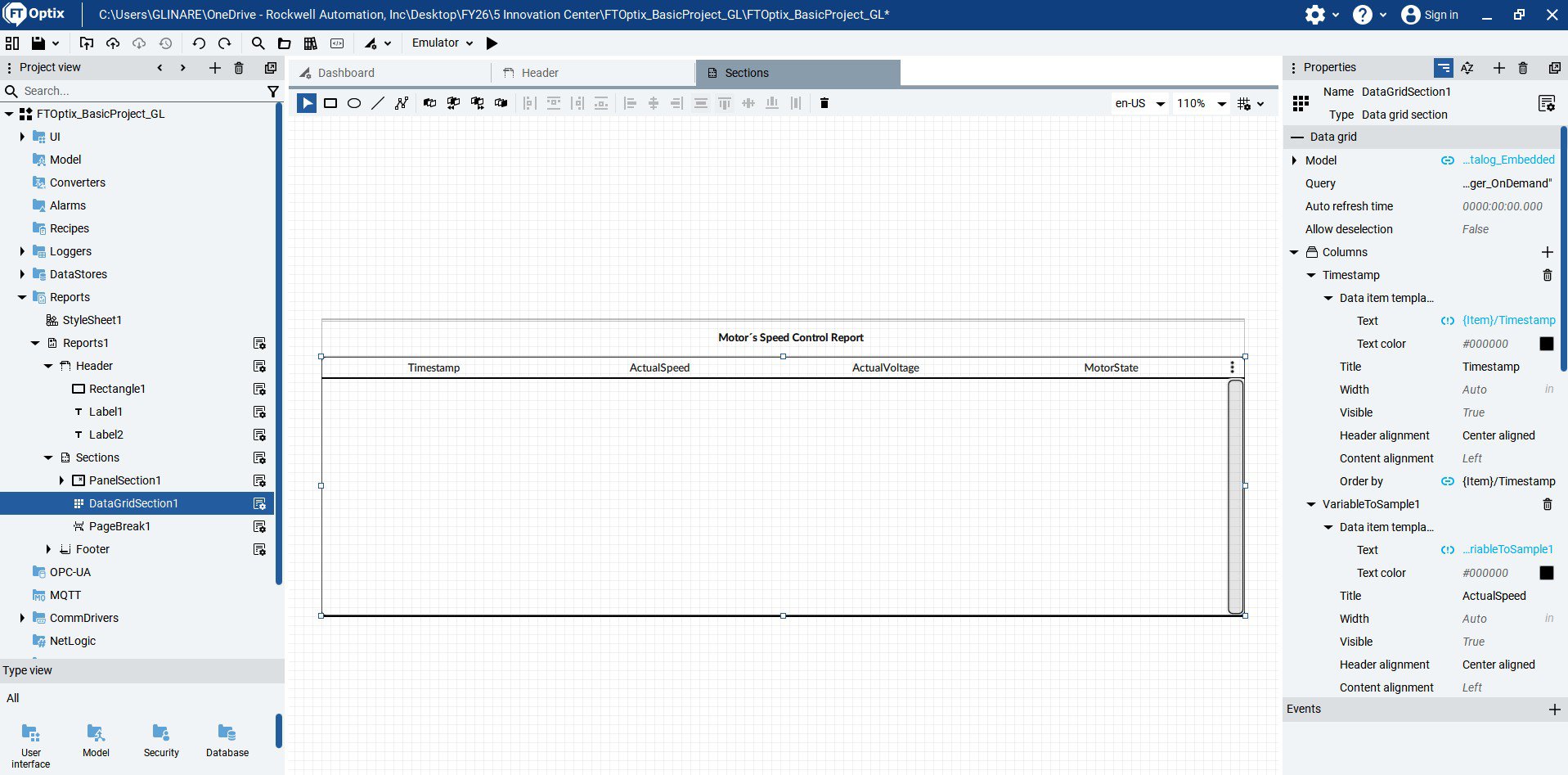
Select the DataGrid component in the report template.
In the Properties panel, locate the Model property.
Click the Dynamic Link icon.
Navigate in the Information Model to the historical data source, for example: Model/DataLoggers/PlantDataLogger/DatalogEmbedded
The component will automatically map database columns (timestamps, process variables, states) into the report view.
Configure the Generation Trigger in the UI and PDF Output Parameters
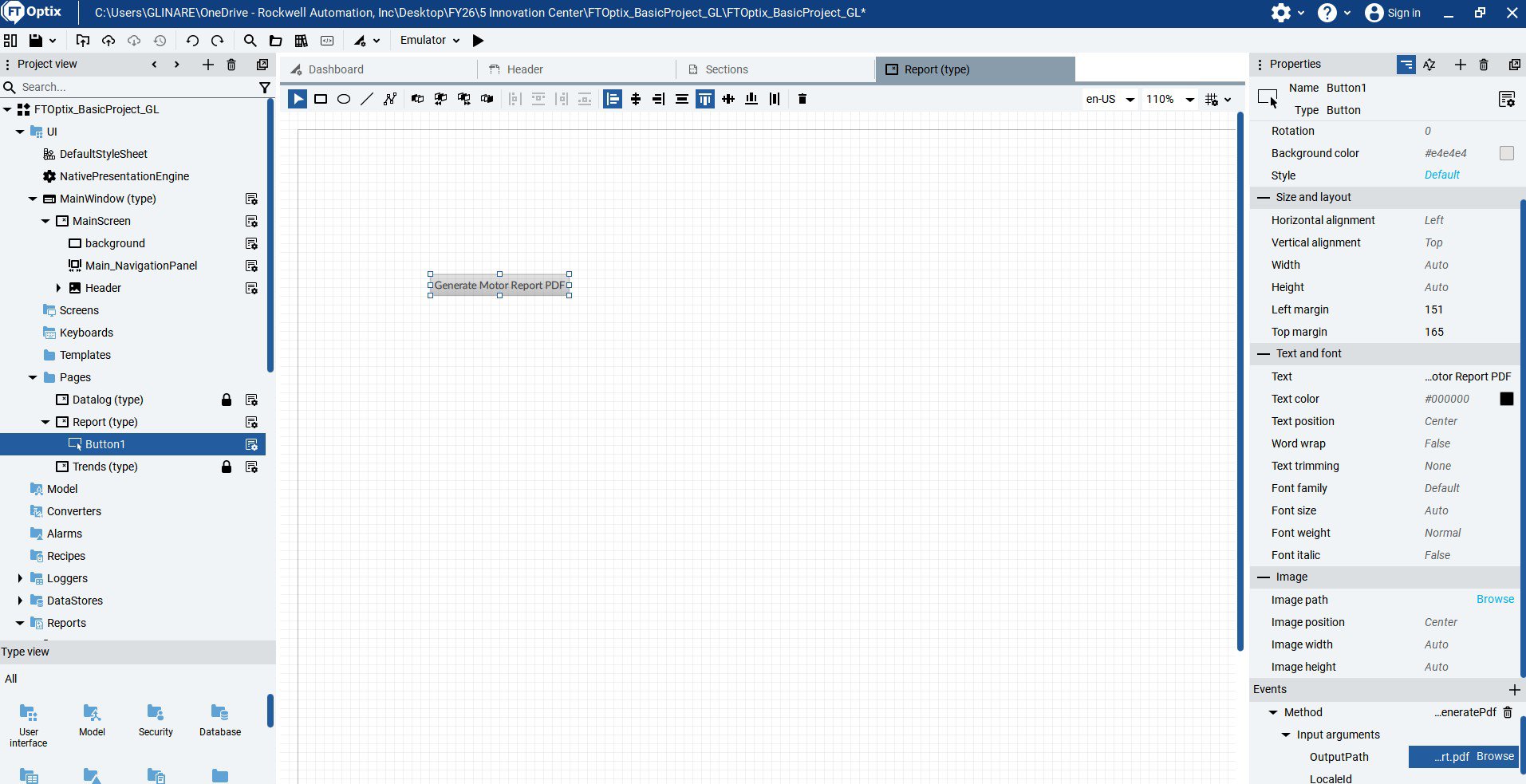
Go to UI -> MainWindow (Type)
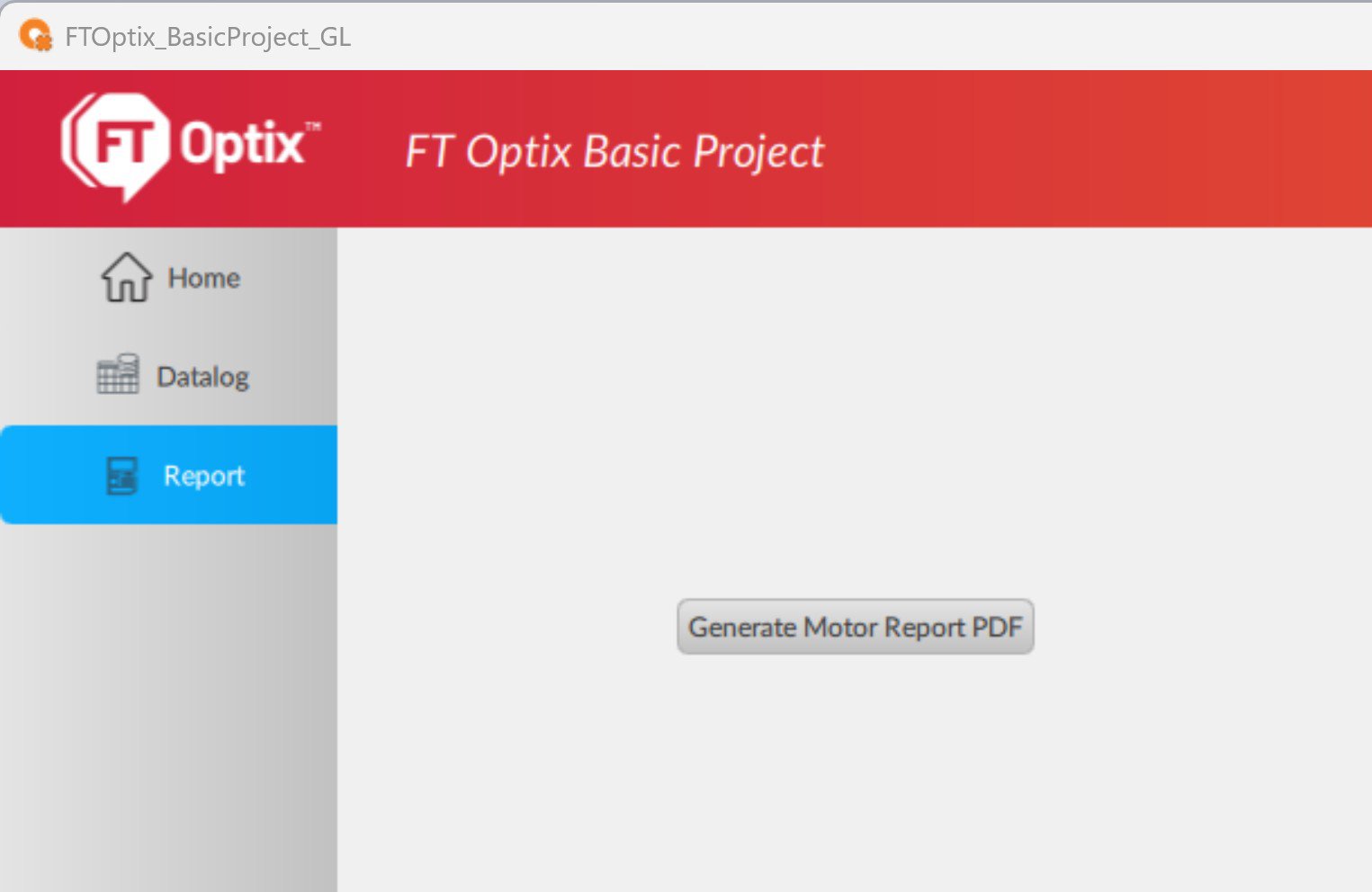
Add a Panel (Type) called Report (Type) where the print button will be placed.
Insert a Button component and rename it:"Generate PDF Report"
Select the button and go to Properties -> Events
In the MouseClick event:
Click + to add a new action
Select ExecuteMethod
In the Method field:
Navigate to Reports -> Reports1
Select the method GeneratePdf
OutputPath Define the output file path and name. To make it dynamic and platform-independent (Windows/Linux/OptixPanel), use: /Ruta/MotorStatusReport.pdf