Download

Tank phase operation via FactoryTalk Optix


What does this application do?
The purpose of developing this application is to offer users a visualization alternative for local process monitoring and control from a modern, simplified, and intuitive interface. This allows to reuse predefined code for easy, reliable, and repeatable implementation, providing information for similar operations used in the operation workstations in a centralized control room. It also allows open connectivity to other equipment using international communication standards.
Is this application relevant to me?
This application shows how to implement sequences for any process, which is useful to different applications in different industries, and is useful to various types of users: operators who will have access to new local operating interfaces who will have homogeneous interfaces at the local and distributed levels; and automation and system maintenance engineers who, through an easy-to-interact platform, can address changes or new requirements based on predefined and reusable objects.

Please note: You will need to agree to the Terms & Conditions for each download.

Need Help?
If you need help with an application or have feedback from the Innovation Center, please contact us.
How can I make it work?
Requirements: products, tools, prior knowledge.
The configuration was developed in:
- Engineering workstation where the following programs are installed:
- FactoryTalk® Services Platform software v.6.50.00
- Studio 5000 Logix Designer® Application v.37.00.00
- FactoryTalk® Optix v.1.6.2.36
- FactoryTalk® Logix Echo v.3.00.00
- Folder with material from Process Library v.5.20.03
- Folder with material from the Power Device Library v.3.05.01
No hardware will be used for the development of this application, but for the type of applications where a similar exercise can be implemented, the following can be used:
- Controller Process (CompactLogix o ControlLogix)
- OptixPanel™
- Access Switch
- Intelligent components for motor control (Powerflex drives , E300 relays and/or SMC soft starters)

Implementation Guide
- Step 1
- Step 2
- Step 3
- Step 4
- Step 5
- Step 6
- Step 7
- Step 8
- Step 9
- Step 10
Step 1
Rockwell Automation has developed materials that allow users to access templates for standardized and repeatable plant-wide implementation (Control Strategy Templates and graphical objects), manuals, and videos for different types of connected smart devices in the plant.
Several of these elements were used for this application; some of the procedures and important points to consider in similar developments are attached as an appendix.
Prepare the engineering workstation with the following software components:
- Studio 5000 v. 37.00.00
- FactoryTalk Optix 1.6.2.36
- FactoryTalk Logix Echo (to emulate the controller) 3.00.00
Step 2
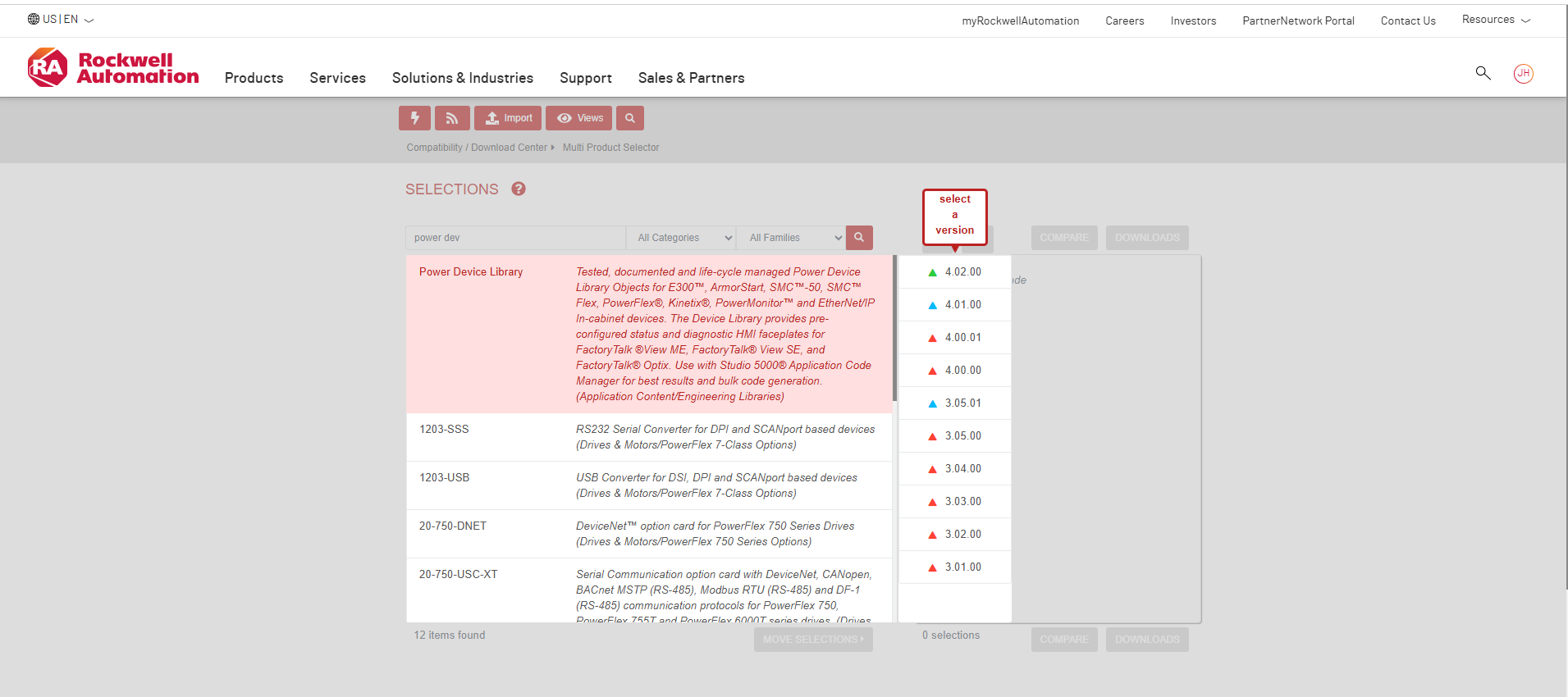
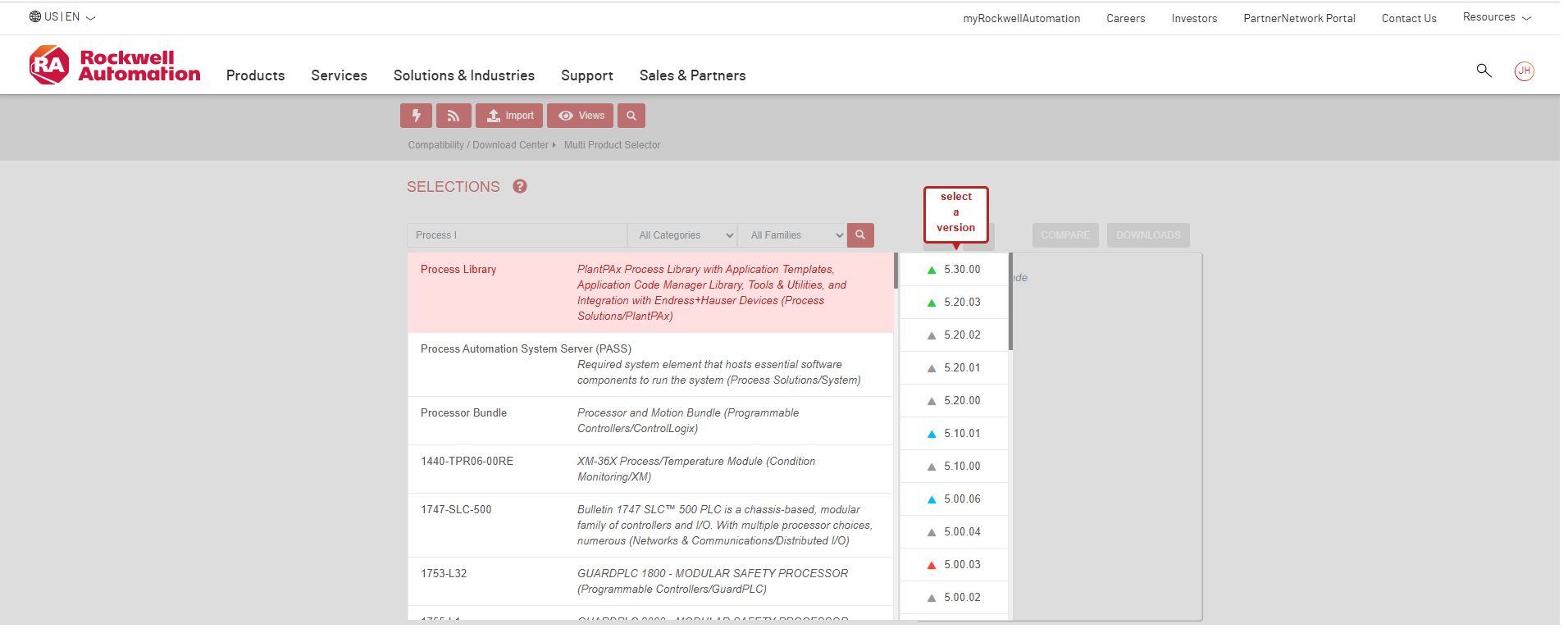
Download the following libraries from the Rockwell Product Compatibility and Download Center page:
- Process Library v.5.20.03
- Power Device Library v.3.05.01
tank-phase-operation-via-factorytalk-optix_Fig 1_1.png
tank-phase-operation-via-factorytalk-optix_Fig 1_2.png
The application uses the following elements for configuration, but they can be downloaded from the same page for other types of devices.
- Control strategies (Analog Monitoring, Motor Control with Variable Speed Drive, Solenoid Valves, Phase Operator), which are widely used in most operations across all types of industries.
- Instructions for smart control devices (for this application, only for PF525 drive, there are more options)
Step 3
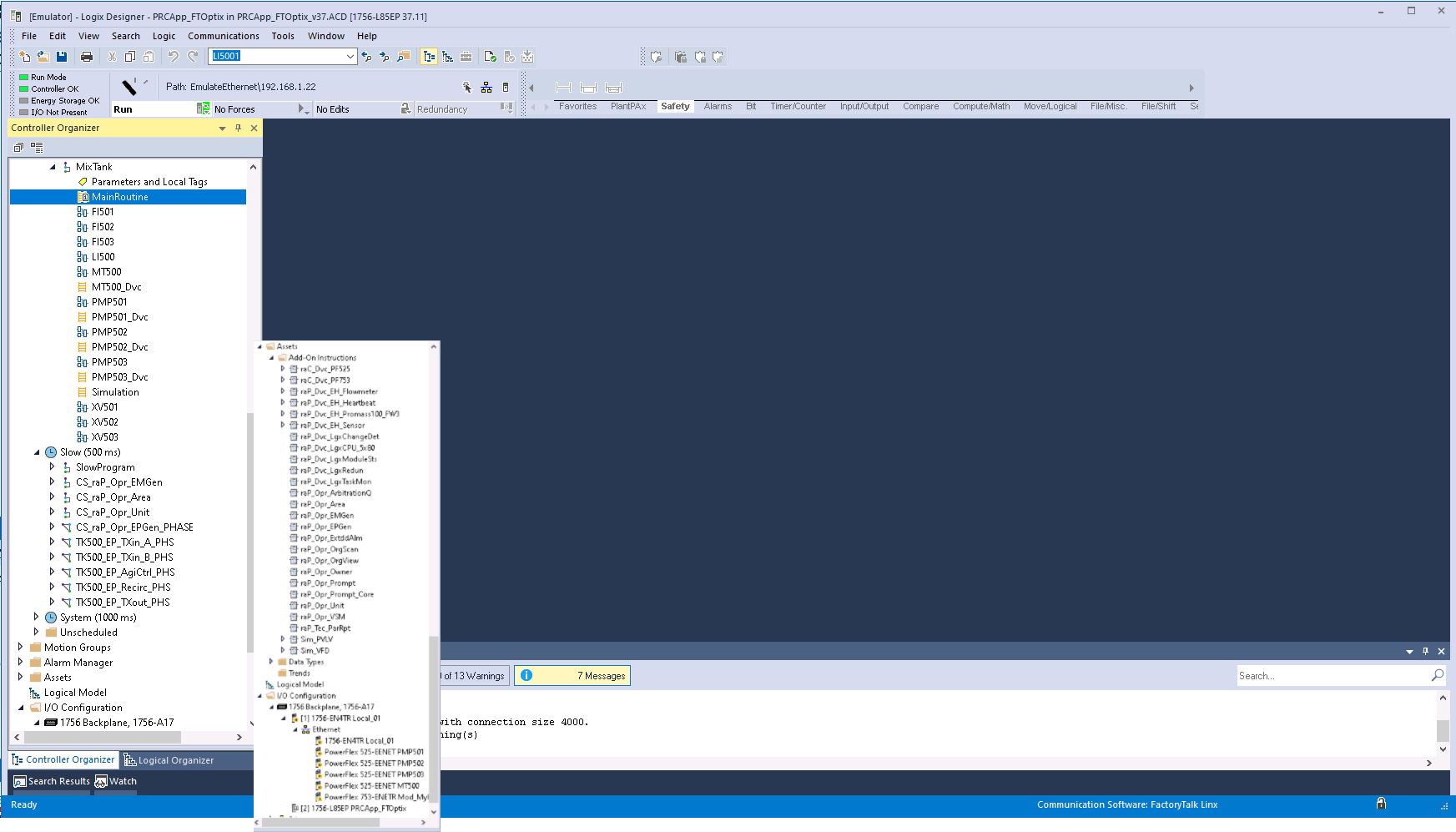
Open the project in Studio 5000.
Note that, due a Process Controller was used, the PlantPAx Instruction category is native and available for use in Ladder Logic or Function Block routines.
Also note that, for this application, instructions for the motor control devices used to move materials in the plant have been added.
tank-phase-operation-via-factorytalk-optix_Fig 2.png
Step 4
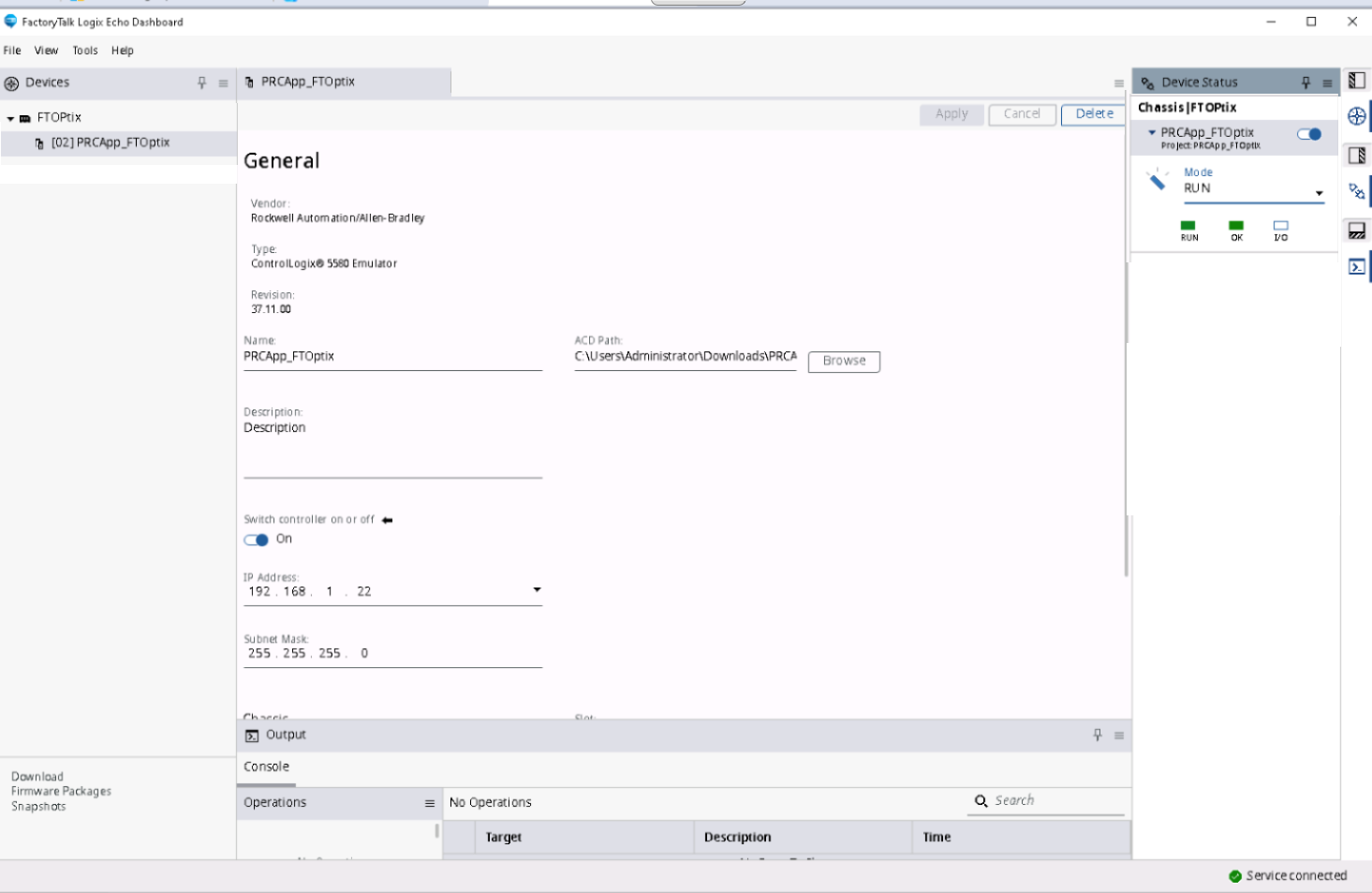
Emulate the controller in FactoryTalk Logix Echo.
- Open the FactoryTalk Logix Echo application
- Add a chassis to emulate the controller
- Create a driver from the backup in Studio 5000 of the project: PRCApp_FTOptix_v37.ACD
tank-phase-operation-via-factorytalk-optix_Fig 3.png
Step 5
Download the project
Whether from FactoryTalk Logix Echo or Logix Designer, with the project open, make sure to set the path to the emulated controller and download it; when finished, leave it in RUN mode.
Step 6
Open the project in FactoryTalk Optix
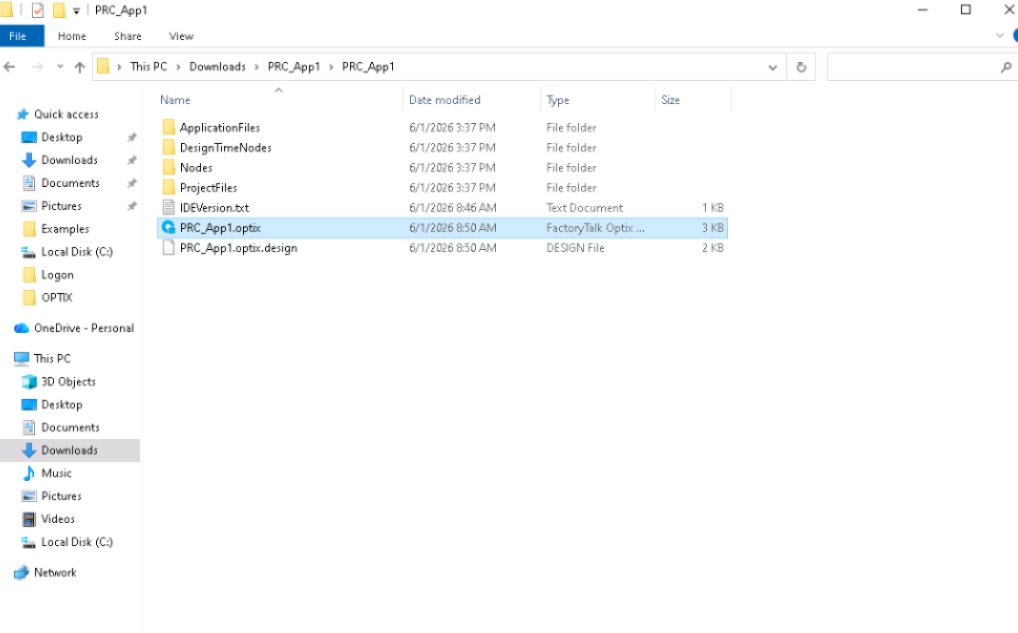
For this application, the PRC_App 1 folder is available, which contains several project files; run PRC_App1 Optix
FactoryTalk Optix file folder
tank-phase-operation-via-factorytalk-optix_Fig 4.png
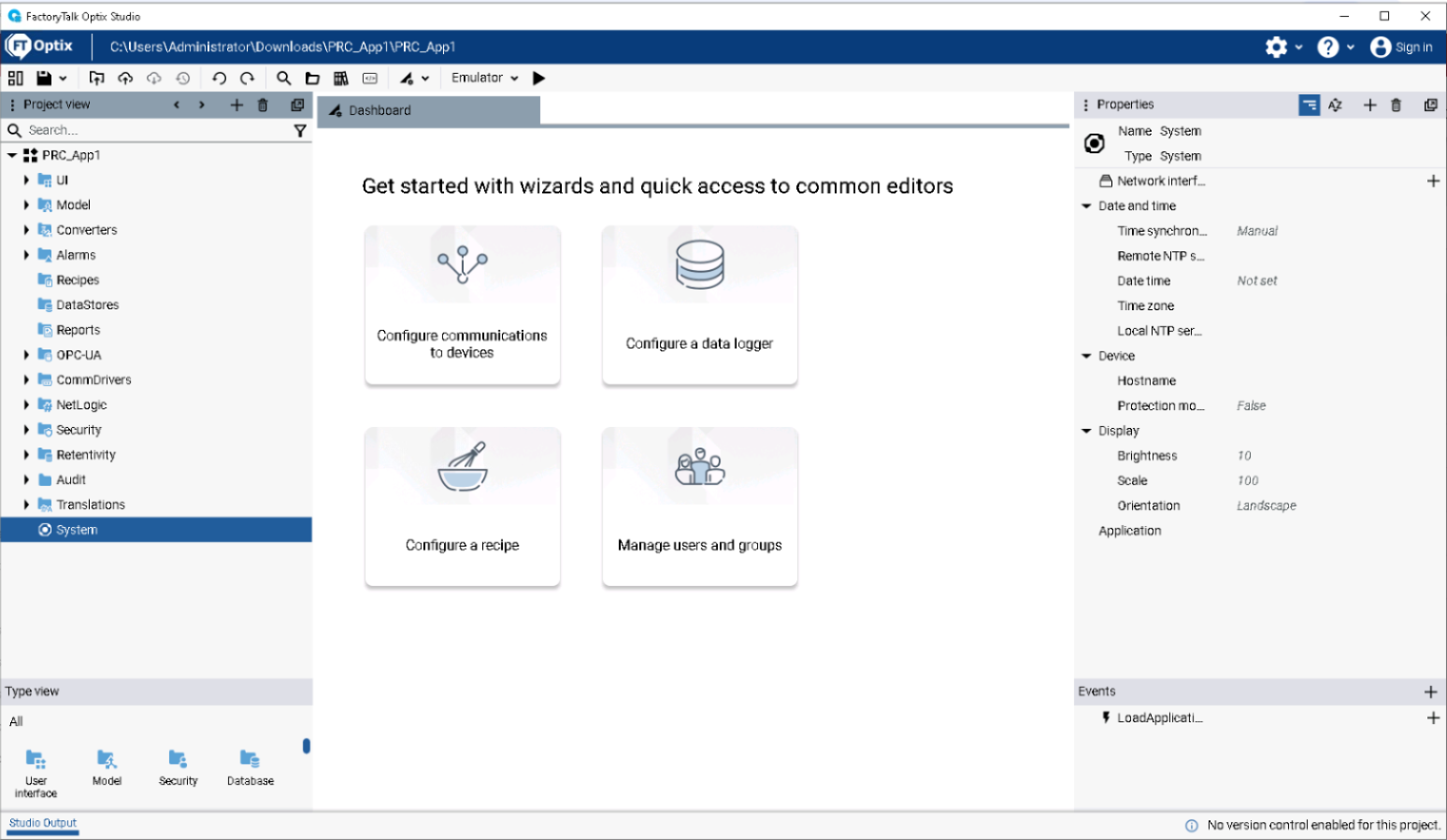
Once the project is open, familiarize yourself with the content:
tank-phase-operation-via-factorytalk-optix_Fig 5.png
If you wish, you can explore the project components.
There you will find not only the graph that allows monitoring and control of sequences in the Tank100, but also all the Process objects developed for FactoryTalk Optix.UI / Main Window Panels

tank-phase-operation-via-factorytalk-optix_Fig 6_1.png
CommDrivers/RAEtherNetIP

tank-phase-operation-via-factorytalk-optix_Fig 6_2.png
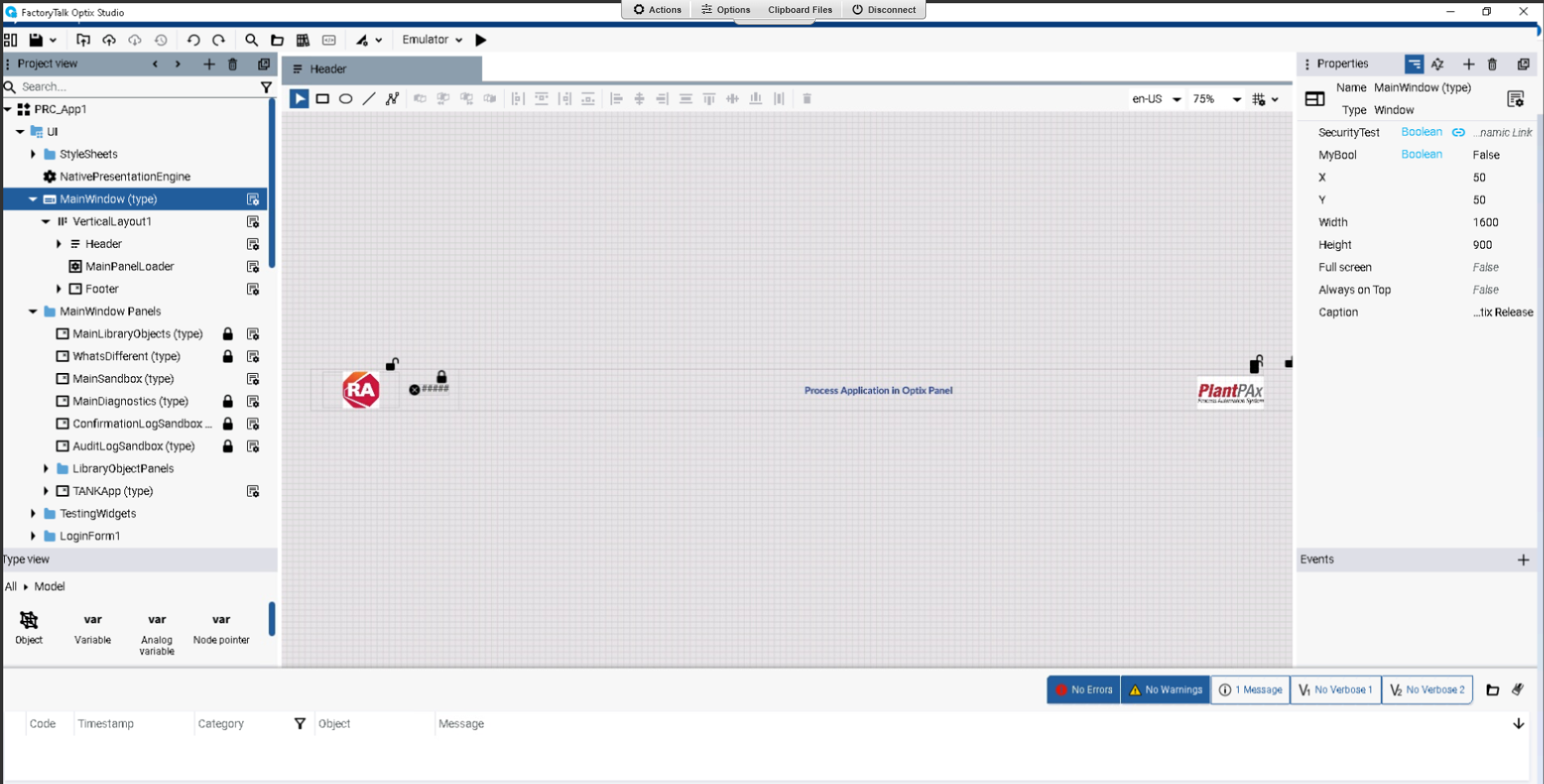
Project Header
tank-phase-operation-via-factorytalk-optix_Fig 7_1.png
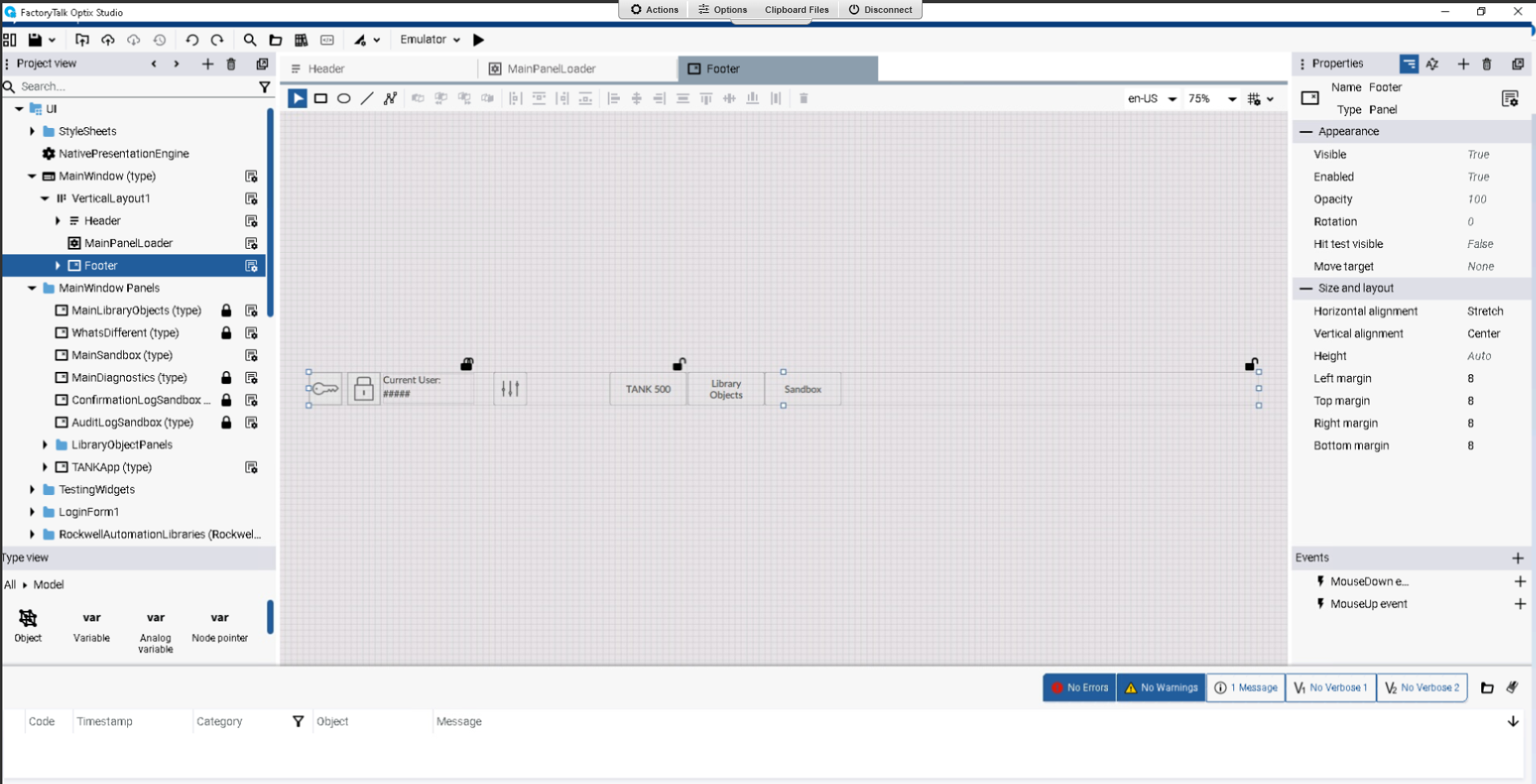
Project Footer
tank-phase-operation-via-factorytalk-optix_Fig 7_2.png
Tank500 Chart
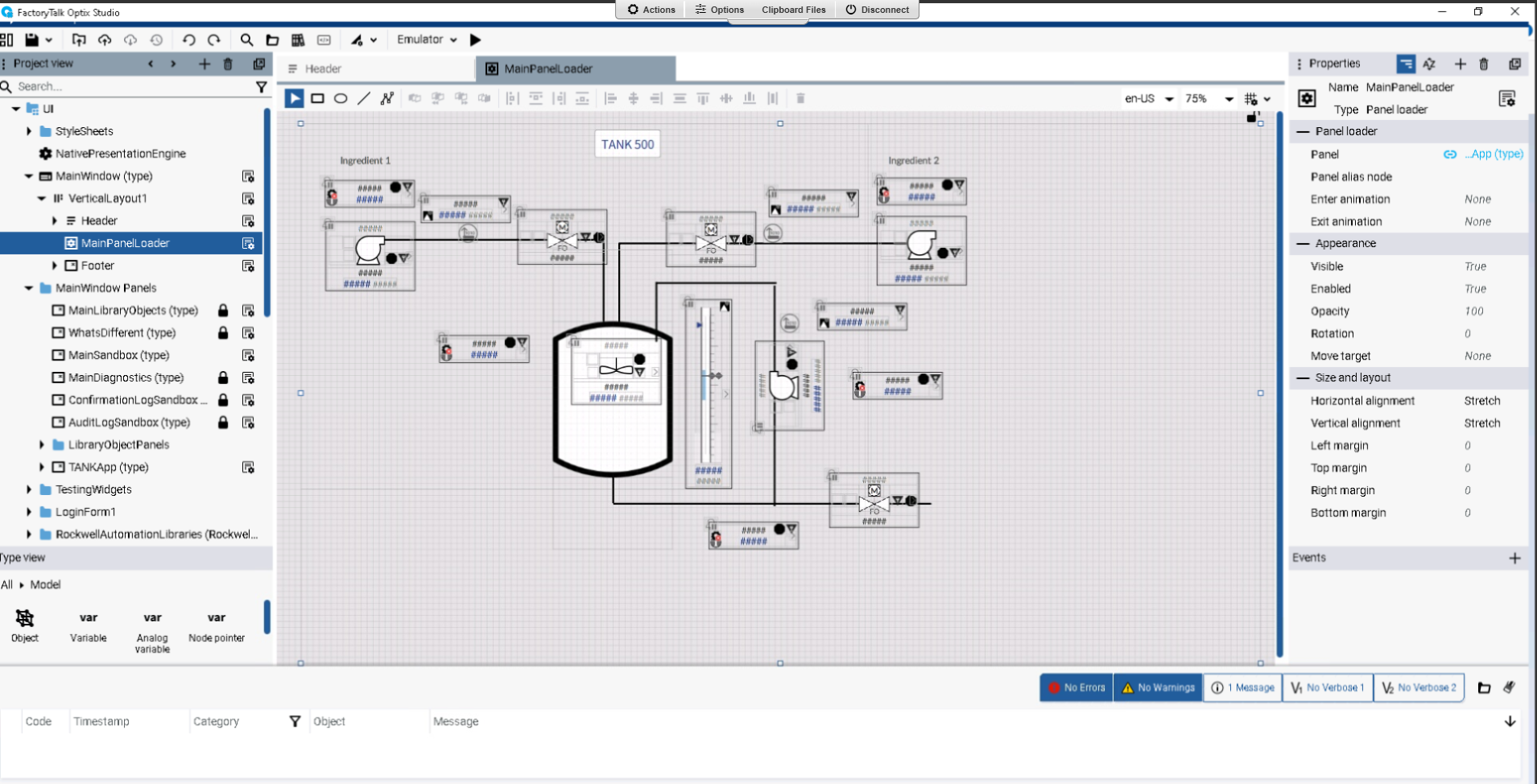
tank-phase-operation-via-factorytalk-optix_Fig 8.png
Step 7
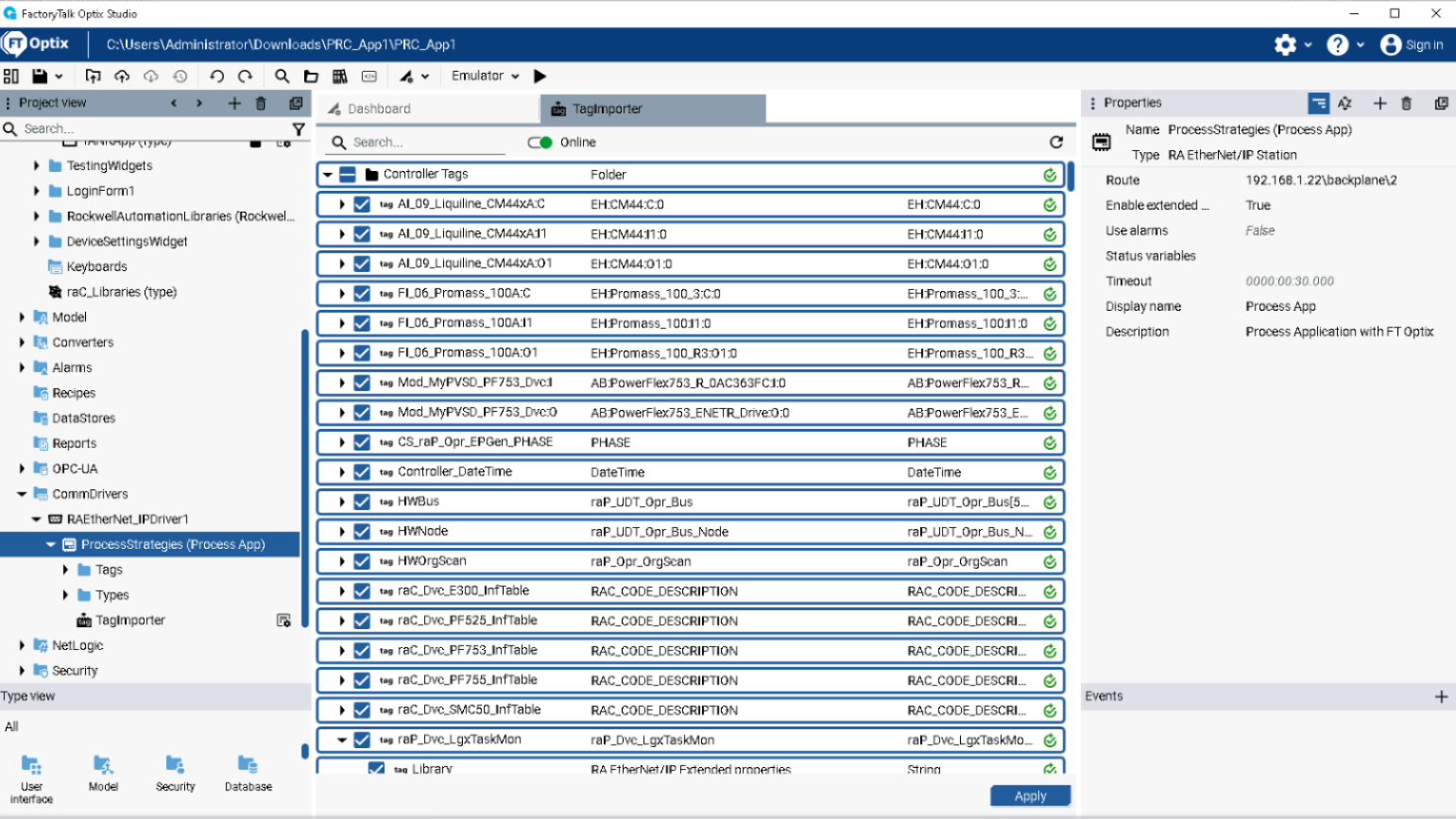
Establish communication with the controller
Confirm that the Driver Observe that all Controller tags will be linked at this time to be used on the generated screens to represent the filling, stirring, recirculation, and transfer process in a tank.
Imported controller tags
tank-phase-operation-via-factorytalk-optix_Fig 9.png
Step 8
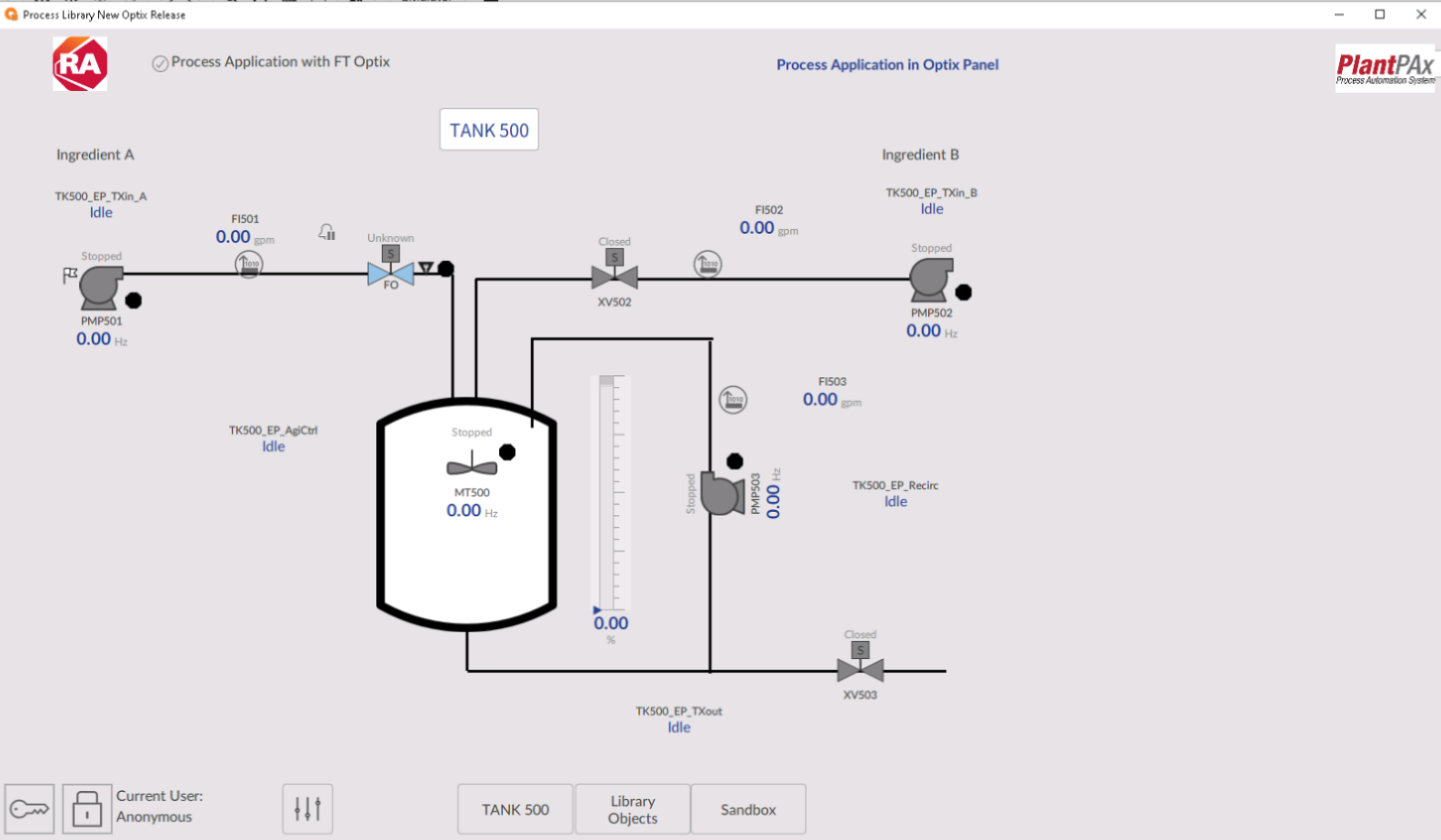
Project Emulation
Once the tags have been synchronized, emulate the project.
Initial view of the emulated project
tank-phase-operation-via-factorytalk-optix_Fig 10.png
Step 9
Process Operation
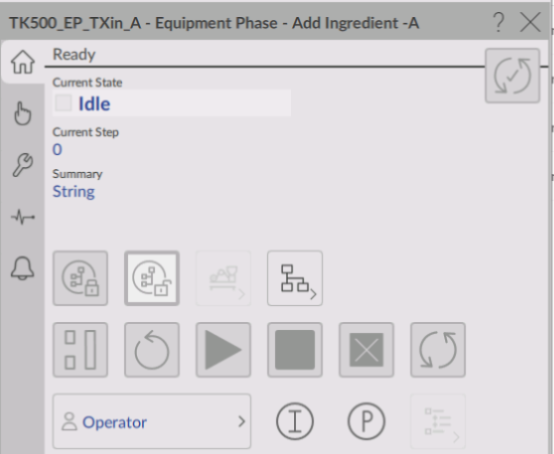
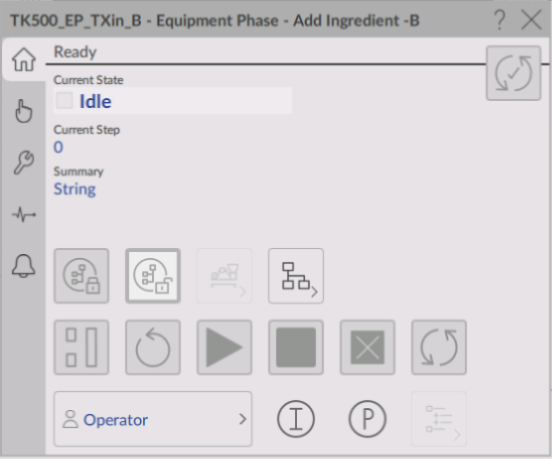
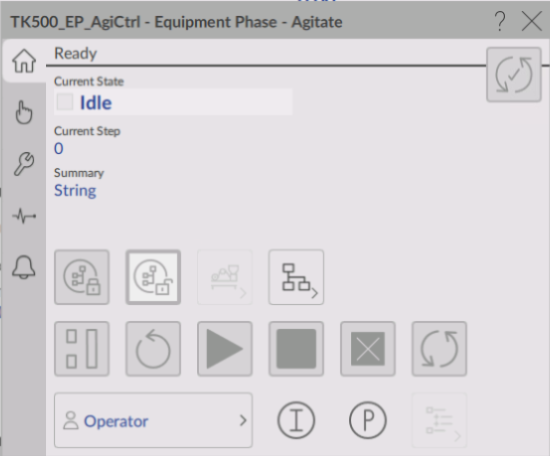
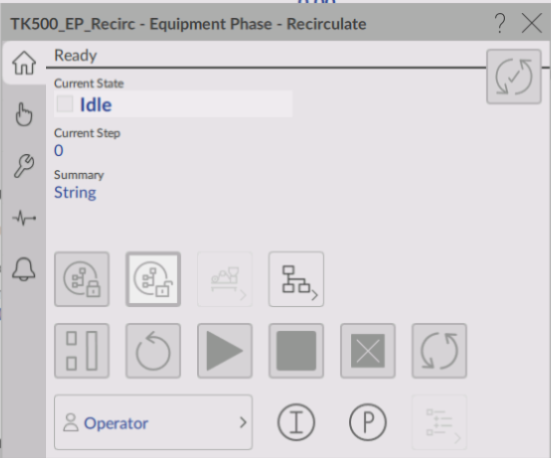
Begin the operation by checking the front panels of each piece of equipment and verifying the operation of the sequences:
- Filled with ingredient A
- Filled with ingredient B
- Agitation
- Recirculation
- Transfer
You will notice that each of the control components can be operated independently.
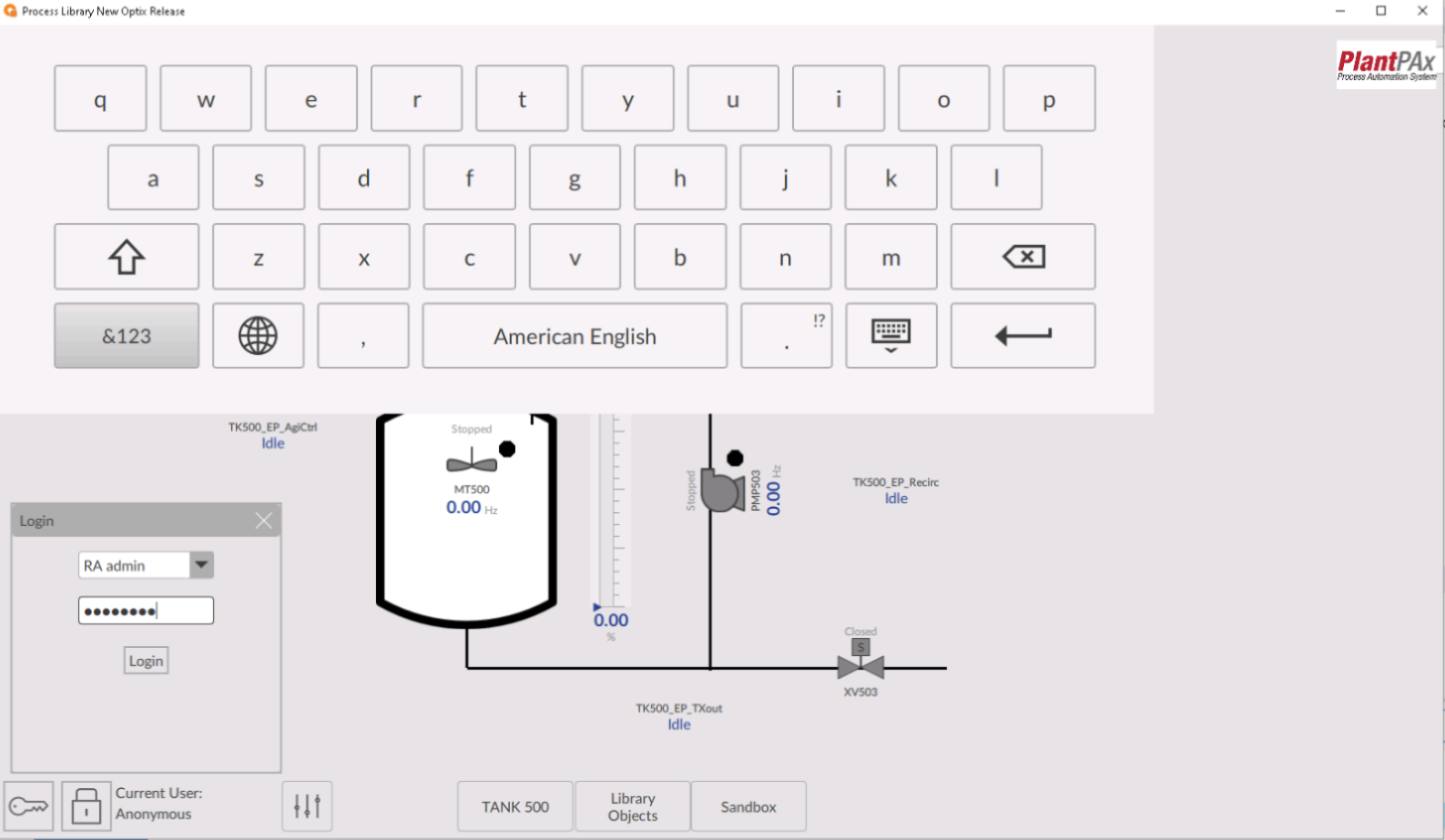
Log in with one of the declared users
User Login
tank-phase-operation-via-factorytalk-optix_Fig 11.png
Faceplates for phase control in Tank 500 (Fig. 1/5)
tank-phase-operation-via-factorytalk-optix_Fig 12_1.png
Faceplates for phase control in Tank 500 (Fig. 2/5)
tank-phase-operation-via-factorytalk-optix_Fig 12_2.png
Faceplates for phase control in Tank 500 (Fig. 3/5)
tank-phase-operation-via-factorytalk-optix_Fig 12_3.png
Faceplates for phase control in Tank 500 (Fig. 4/5)
tank-phase-operation-via-factorytalk-optix_Fig 12_4.png
Faceplates for phase control in Tank 500 (Fig. 5/5)
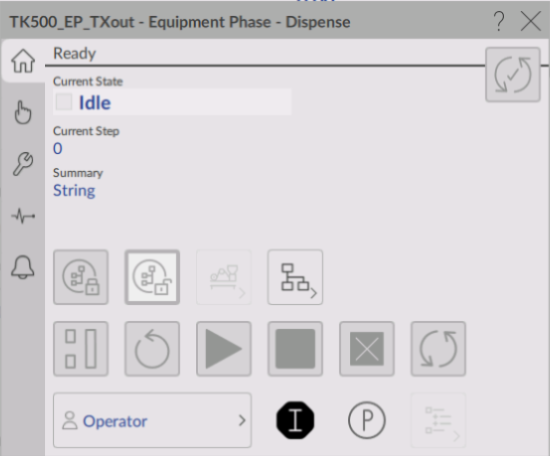
tank-phase-operation-via-factorytalk-optix_Fig 12_5.png
Discrete equipment covers with interlock (Fig. 1/2)
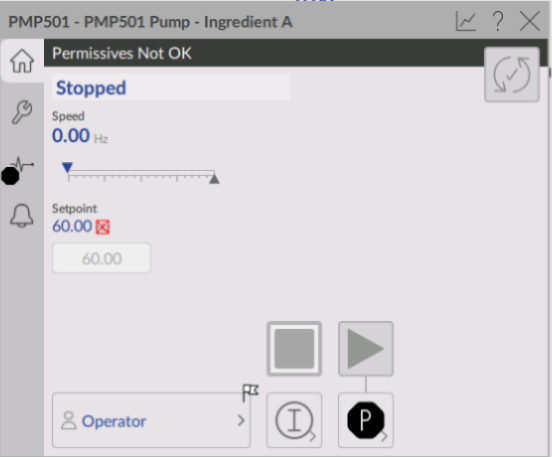
tank-phase-operation-via-factorytalk-optix_Fig 13_1.png
Discrete equipment covers with interlock (Fig. 2/2)
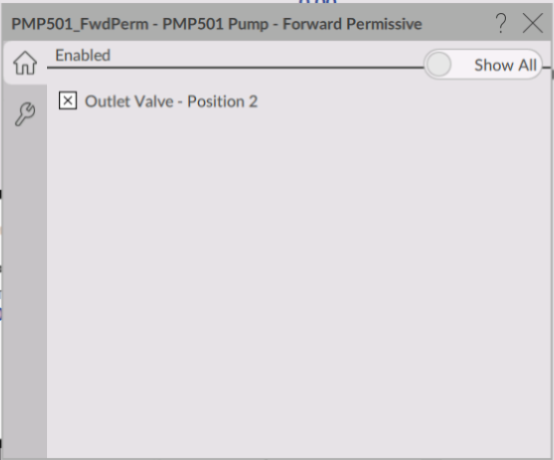
tank-phase-operation-via-factorytalk-optix_Fig 13_2.png
Step 10
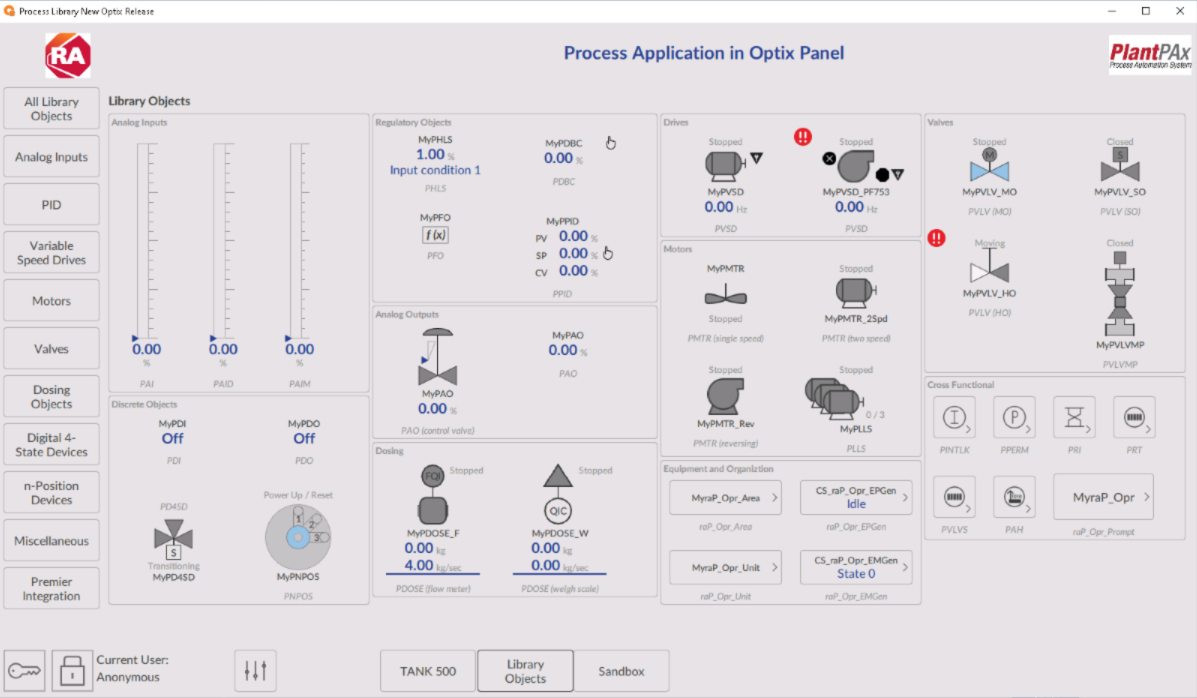
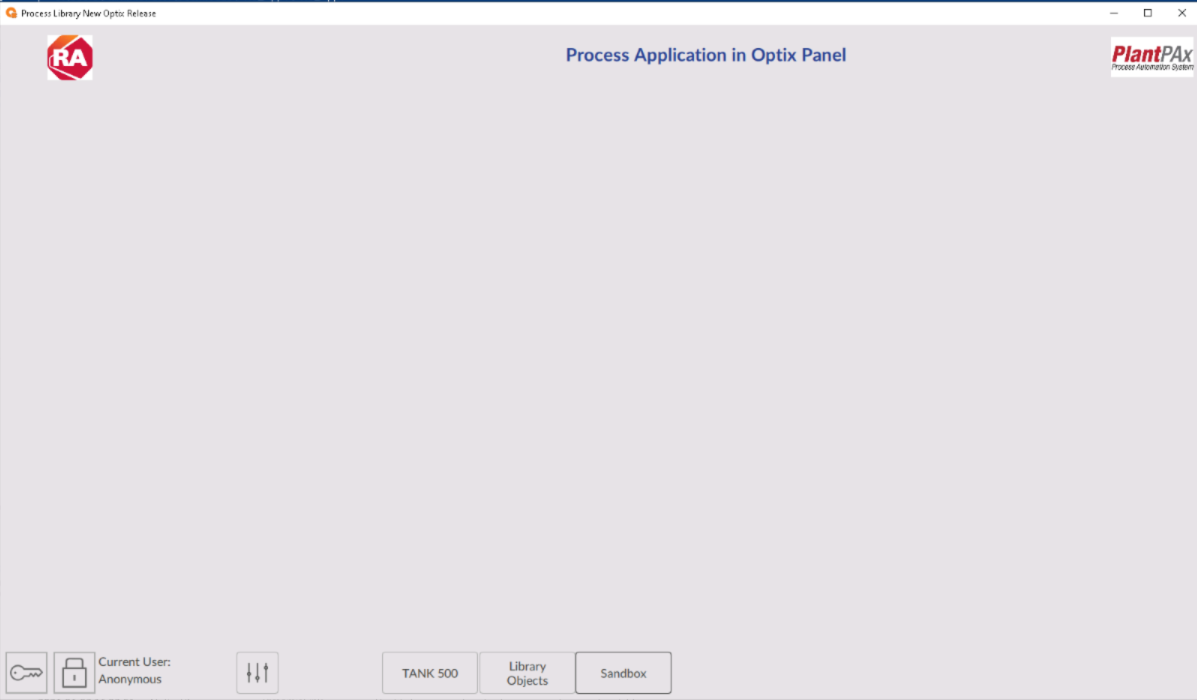
Navigating to other screens in the project
Since the Optix template downloaded from Process Library was used, navigation was left to the predefined screens to familiarize oneself with the objects and their capabilities.
Library objects for process control Available in v 5.20.03
tank-phase-operation-via-factorytalk-optix_Fig 14.png
Sandbox Screen
tank-phase-operation-via-factorytalk-optix_Fig 15.png
Tank phase operation via FactoryTalk Optix
Version 1.0 - June 2026
