
Configure Illuminated 800F Peer Commands
The 'Peer Command' view allows you to configure as many as seven peer control commands per device.
TIP:
- Non-illuminated push buttons do not support peer commands.
- For 800F communication interface modules only: To access 'Peer Commands', the 'Operating Mode' must be configured to 'Peer Mode'.
- Peer Command 0 has the highest priority and Peer Command 6 has the lowest priority. The highest priority peer command with trigger conditions that are true determines the state of the 800F LED.
Follow these steps to configure peer commands for illuminated push buttons.
- Open an existing controller project.
- Make sure that the gateway has been added to the controllerEtherNet/IP™interface and all of your in-cabinet devices are configured.
- Click the 'Peer Commands' section from the left navigation pane.TIP:To access 'Peer Commands', 'Controlled by' must be configured to 'Peer'.The 'Peer Commands' selections appear in the right pane and a pop-up window appears.Configure Peer Commands
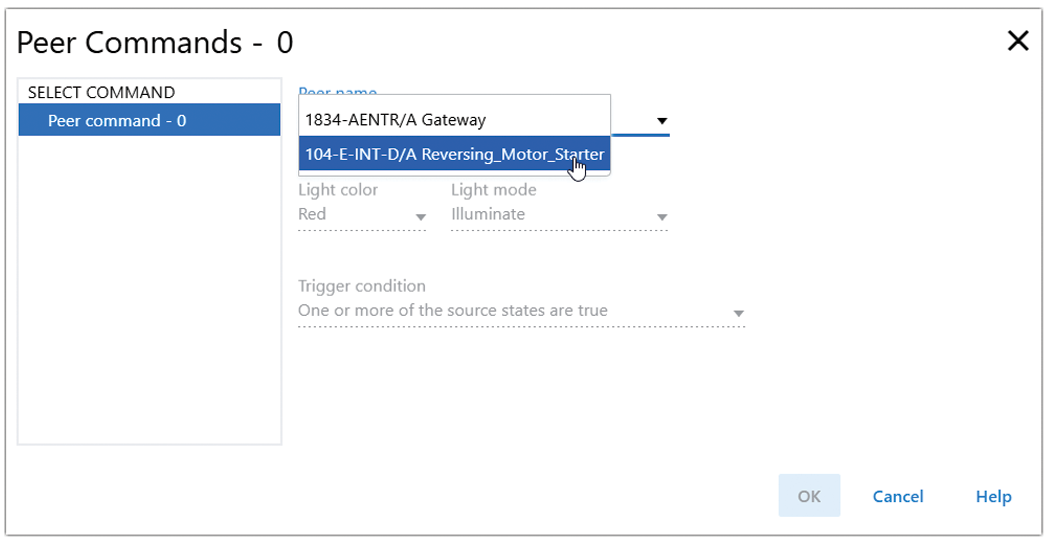
- Select the peer name to trigger the LED actions from the dropdown menu. The command screen detail appears.Select Peer Name
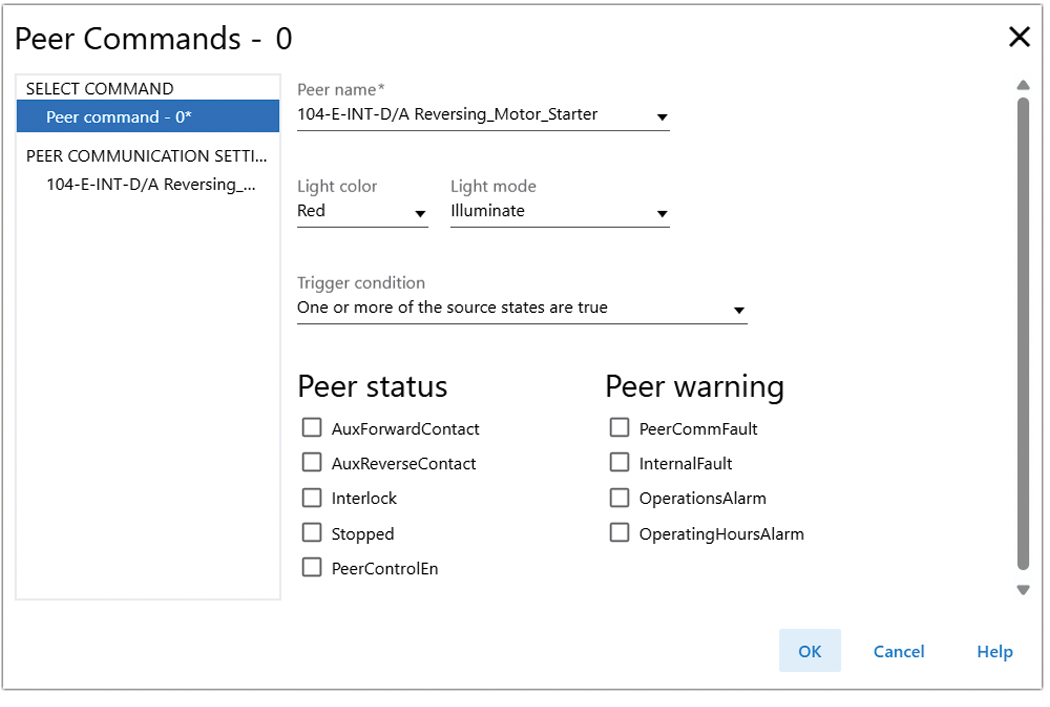
- Add a new command or edit an existing command.ParameterDescriptionPeer nameDefines the source of the trigger parameters. The list contains Rockwell Automation devices available on theEtherNet/IP™In-cabinet system.Light colorA panel component with a color lens displays the lens color.For a panel component with a clear lens, choose from the following options: Red, Green, White, Blue, Yellow, Turquoise, Magenta, AmberLight modeDefines 'Light Mode' when trigger conditions are met.Choose from the following options:
- Illuminate
- Blink
- Dim
- Blink
- Dim
Trigger conditionDefines the logical relation between the trigger parameters.Choose from the following options:- All of selected source states are true
- One or more of the source states are true (default)
- None of the selected source states are true
Peer statusDisplays the peer device's status parameters.Peer warningDisplays the peer warning parameters. - Click each device that is listed below the 'PEER COMMUNICATION SETTING' in the left pane of the screen to view the current peer communication settings.Communication Settings
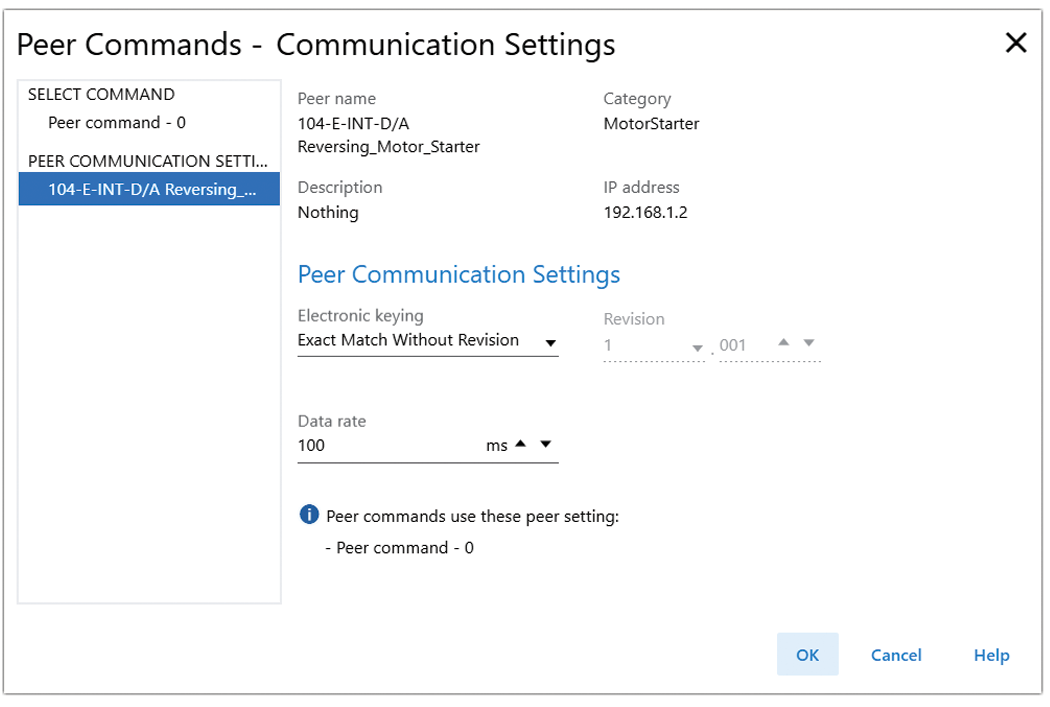
- View and edit the peer communication settings.ParameterDescriptionCategoryDisplays the category of the selected peer deviceIP addressDisplays the IP address of the selected peer devicePeer communication settingsSetting used to communicate to the 'Target Peer' deviceElectronic keyingDefines the electronic keying for peer commandData rateDefines the request data rate for peer data between 20…1000 ms
Provide Feedback