
Change Dataset
Perform the following steps to change the Dataset of the Storyboard:
- Click [Change].Change Dataset
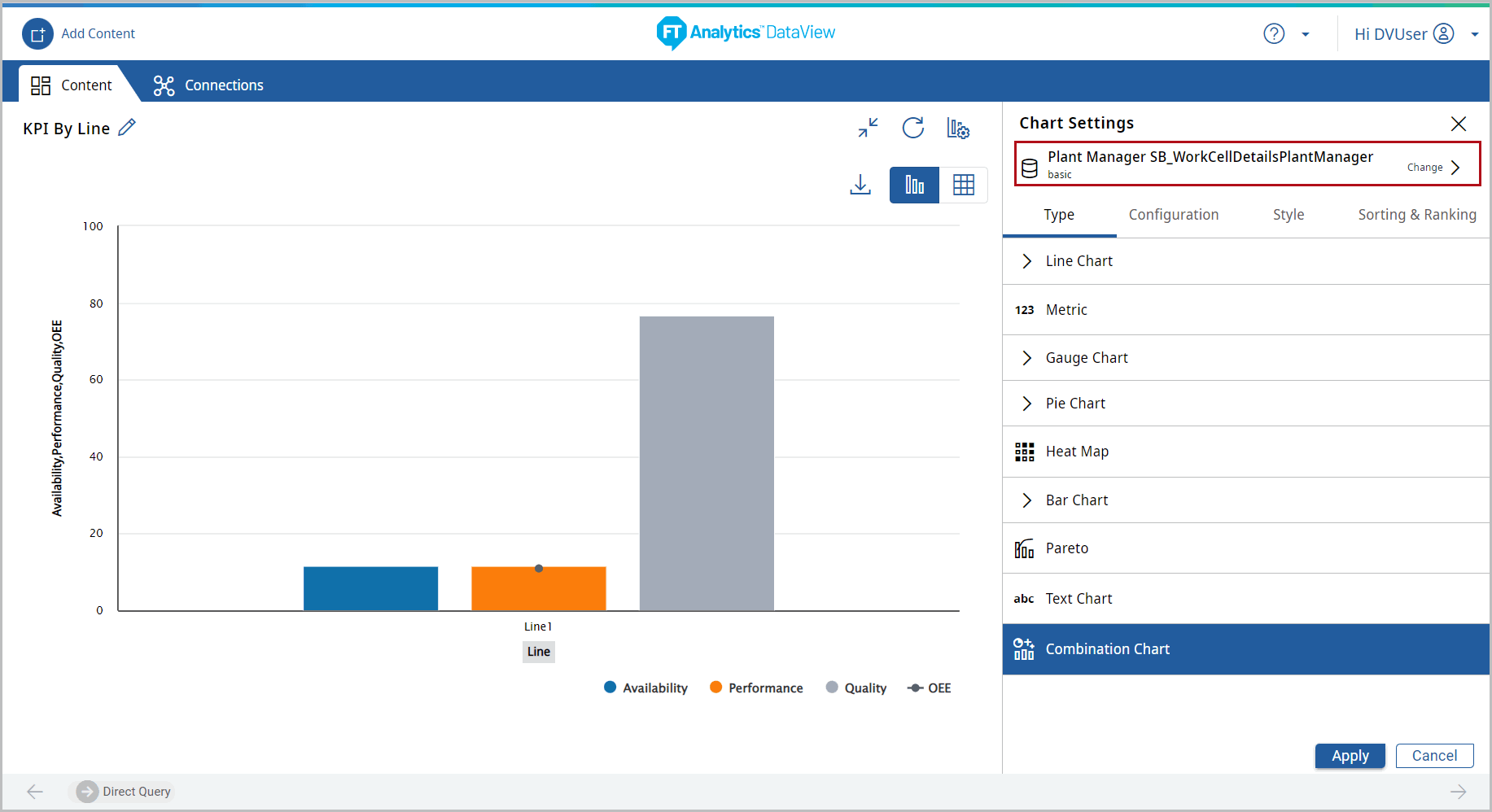 The Choose Dataset page displays.
 - Select the desired Dataset from the drop-down list.
- Select the checkbox, if User wants to set the selected Dataset as default Dataset.
- Click [Select], the Chart settings window displays.Select Dataset
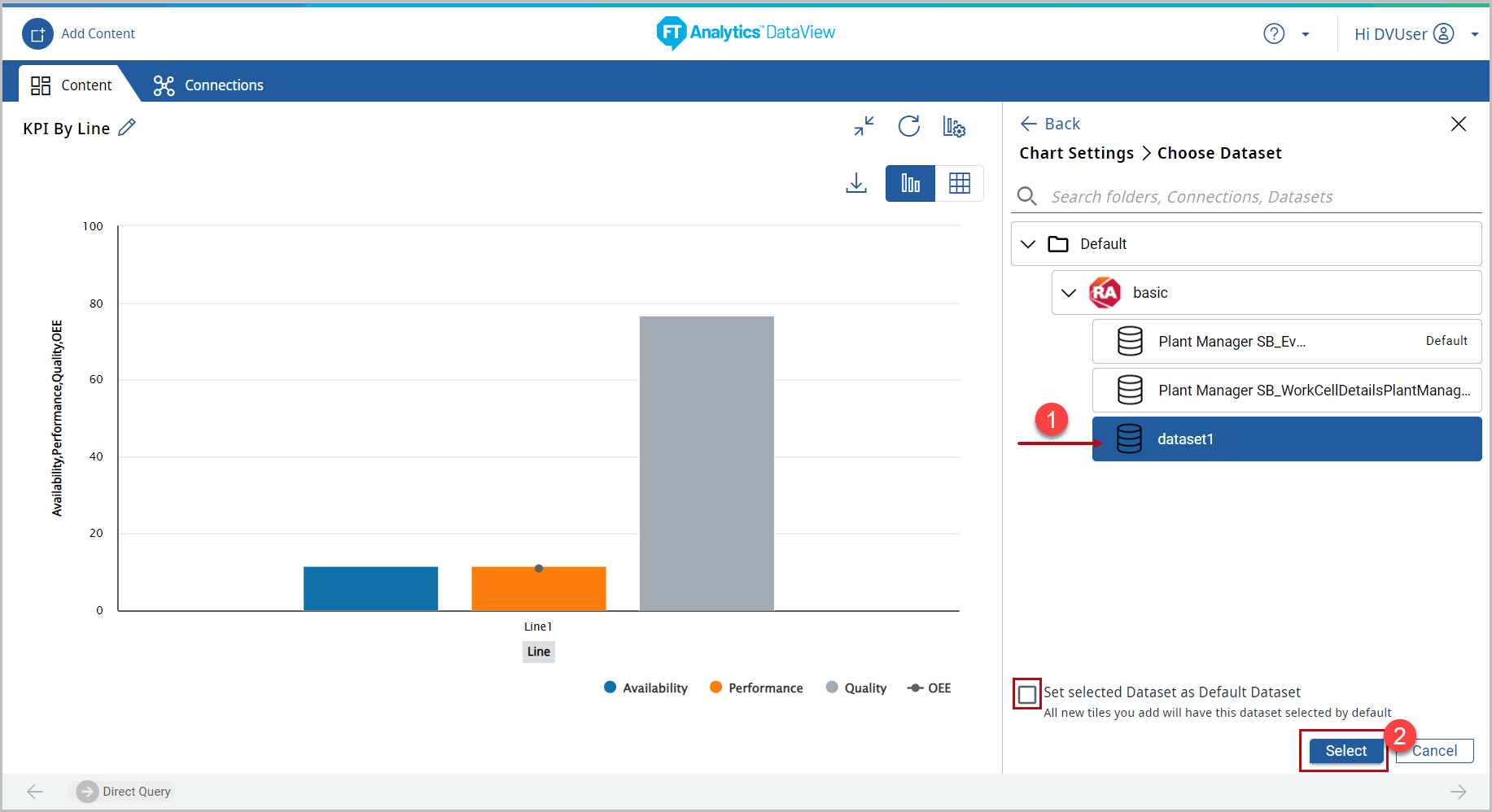 IMPORTANT:All the attributes like X-Axis, Y-Axis, Tooltip, Reference line, Sorting & Ranking reset to empty values, User can change the attribute configuration as required. The Chart Type and Style remain the same.
 - Navigate to the Configuration tab, click the [
 ] icon and select the X-Axis and Y-Axis attributes from the drop-down list.
 - Click [Apply].NOTE:If the X-Axis and Y-Axis attributes are not selected then the ‘Configure the Axes for this chart to update.’ message displays.Configuration Settings
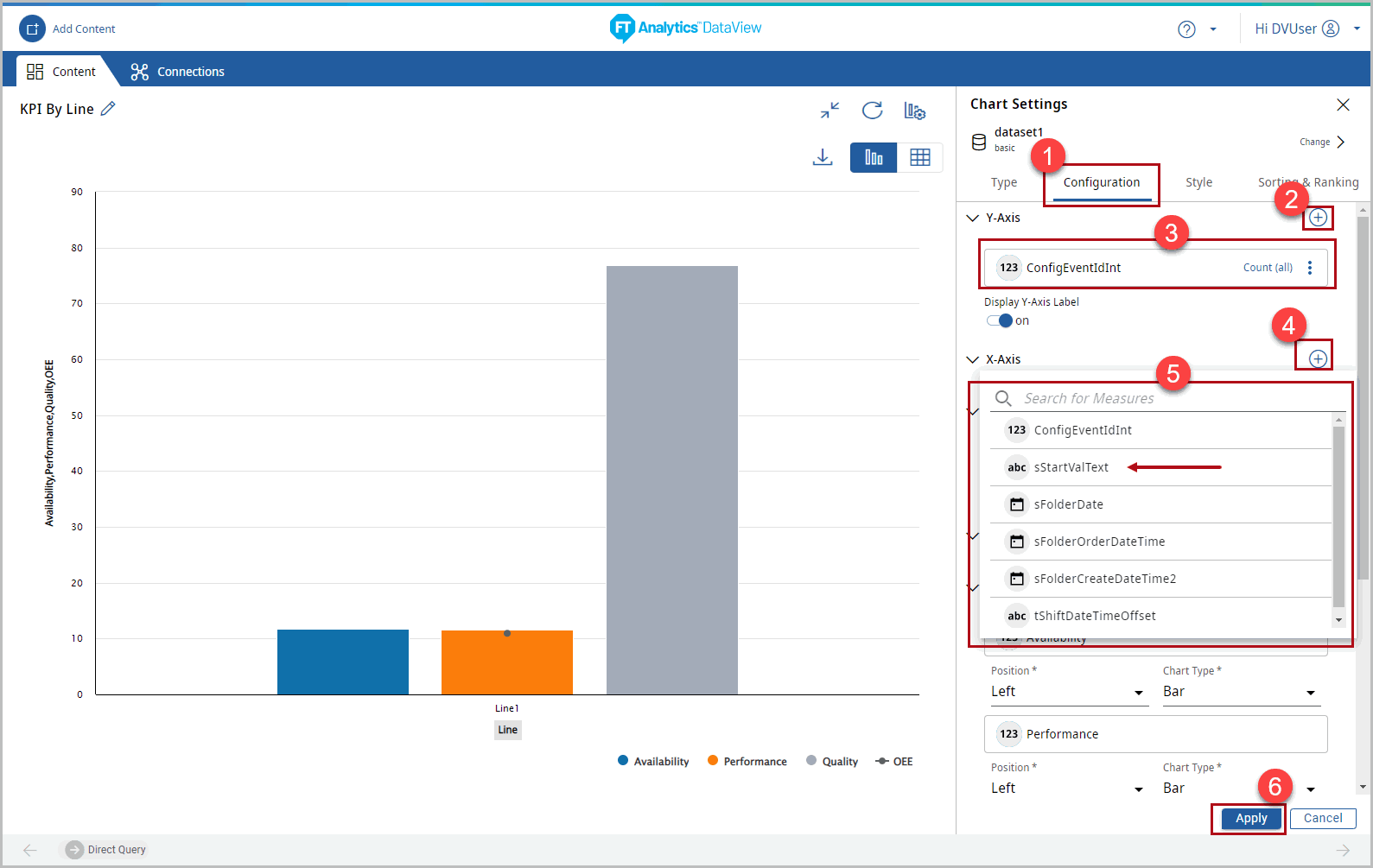 The Chart with updated Dataset displays.
 - Click the [
 ] icon to minimize the chart tile.
 - Click [Save Changes] to save the Storyboard.
Provide Feedback